
How to Integrate Intelbuddy with WhatsApp Account
This training guide offers a step-by-step process for integrating Intelbuddy with business WhatsApp account. Once the AI agent is connected to WhatsApp, it will automatically begin responding to inquiries, enhancing customer engagement and support.

1
Navigate to https://app.intelbuddy.ai
2
Ensure the phone number you want to connect to IntelBuddy is not associated with any existing WhatsApp account. If it is, delete the WhatsApp account using the WhatsApp app. Once the number is free, start the IntelBuddy integration process
3
Open your AI agent
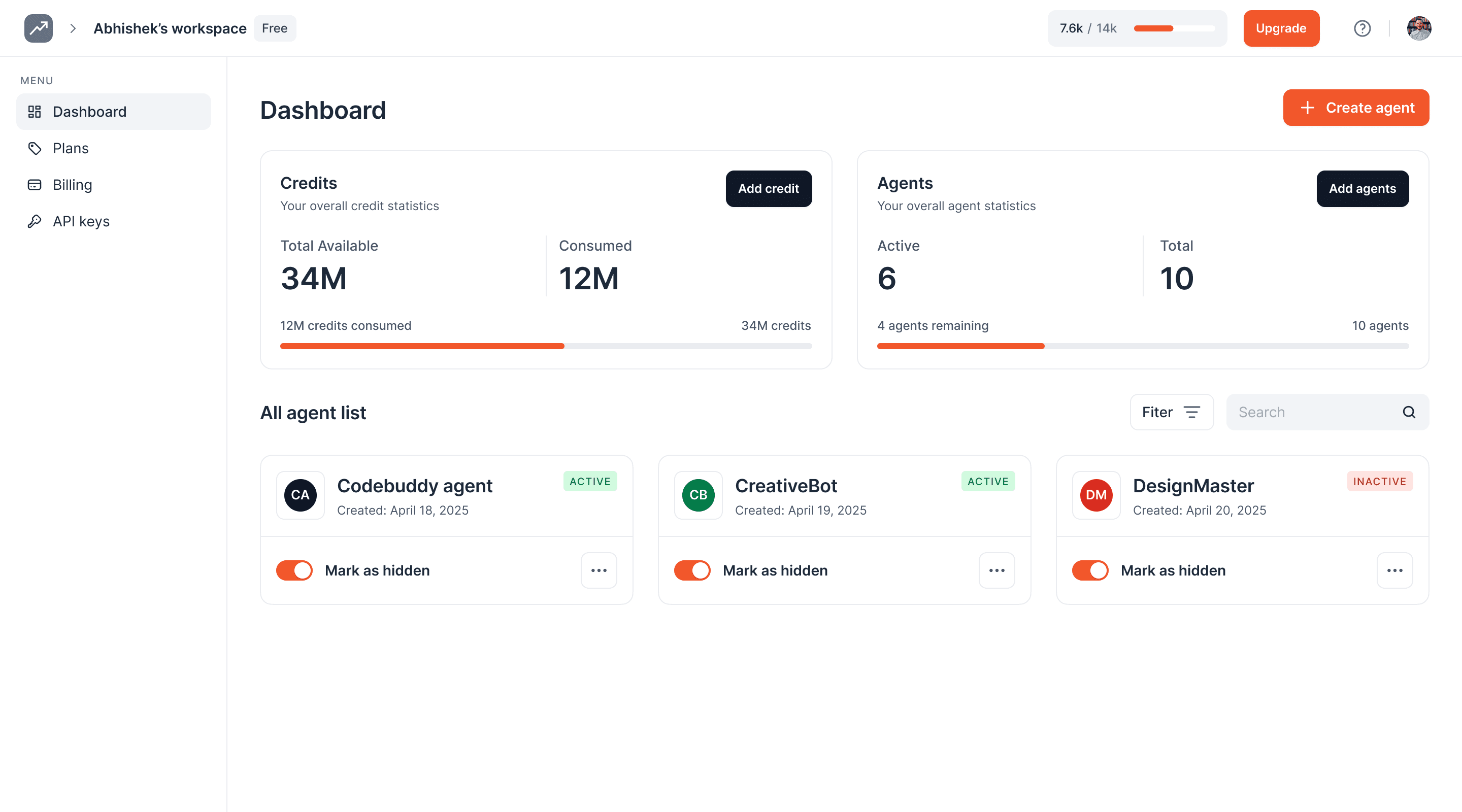
4
Click on 'Integrations'
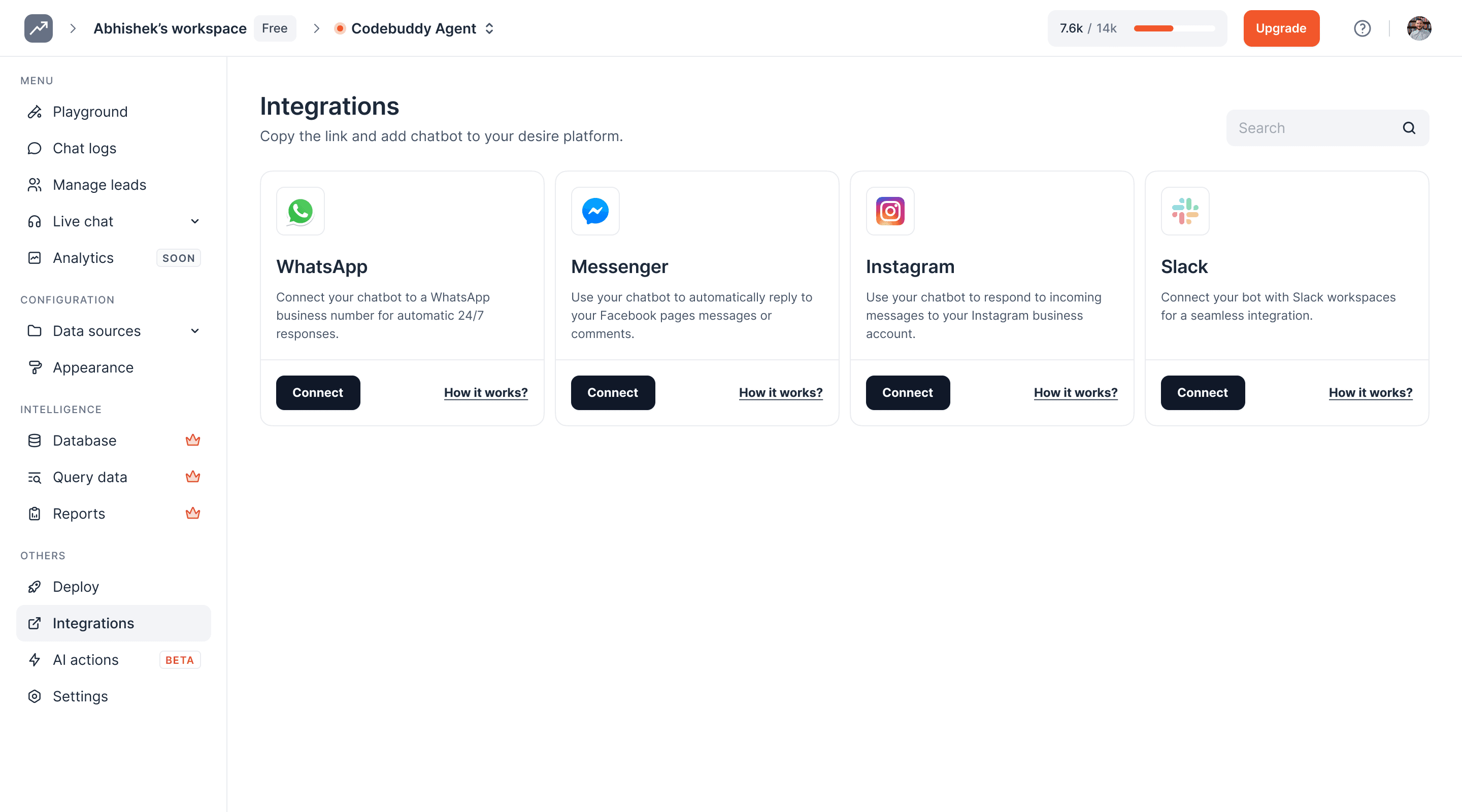
5
Click on the 'Connect' button under the WhatsApp option. A new pop-up window will open
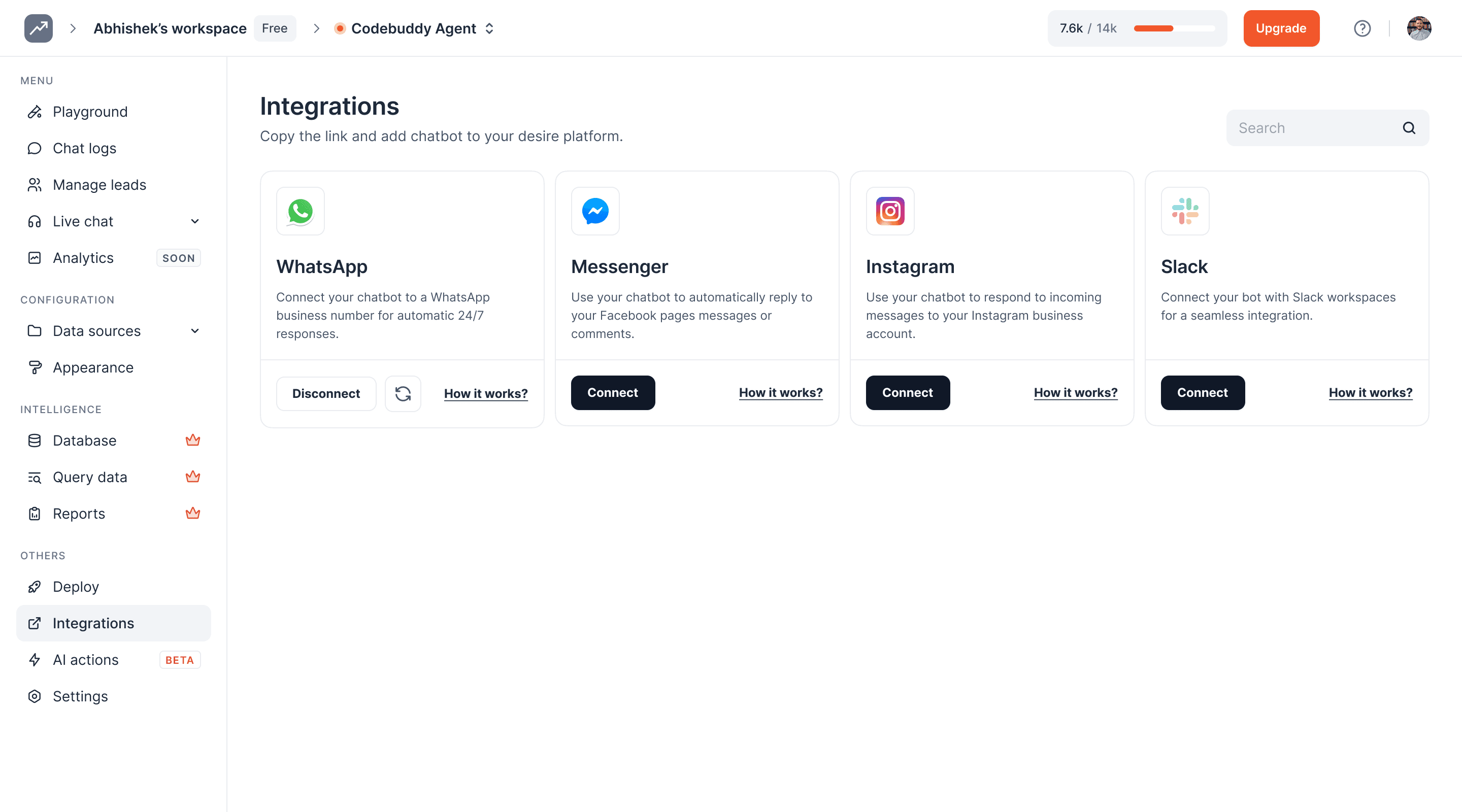
6
Connect your Facebook account by entering your credentials and clicking 'Continue'
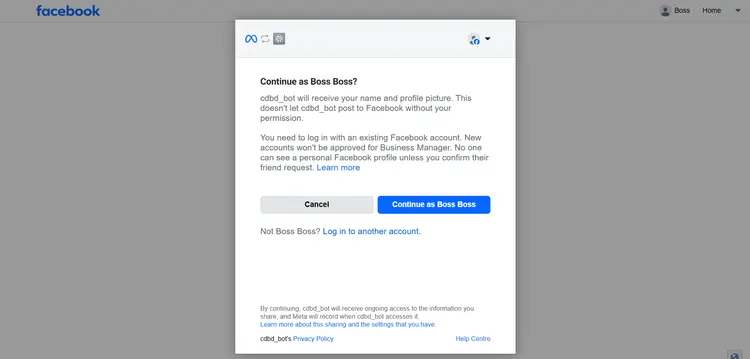
7
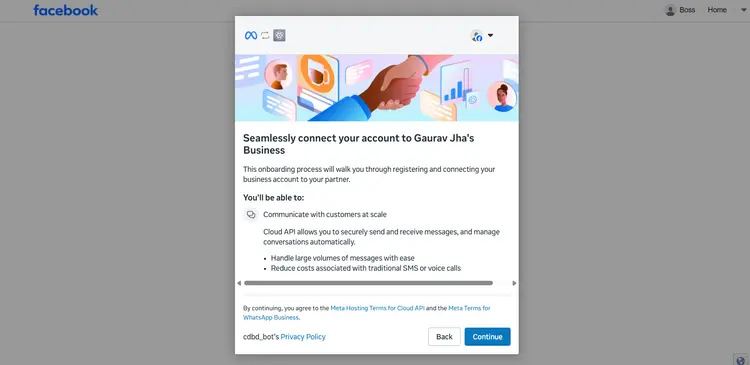
Click on 'Continue'
8
Avoid using the free virtual phone number provided by Meta ('1555'). Use a physical SIM or mobile number for WhatsApp integration
9
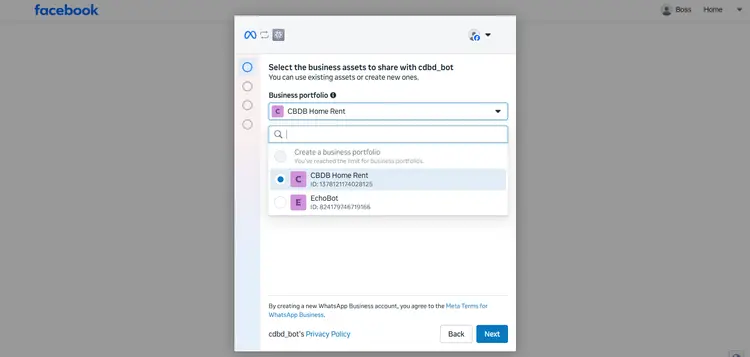
Click on the drop-down menu and select 'Create a business portfolio'
10
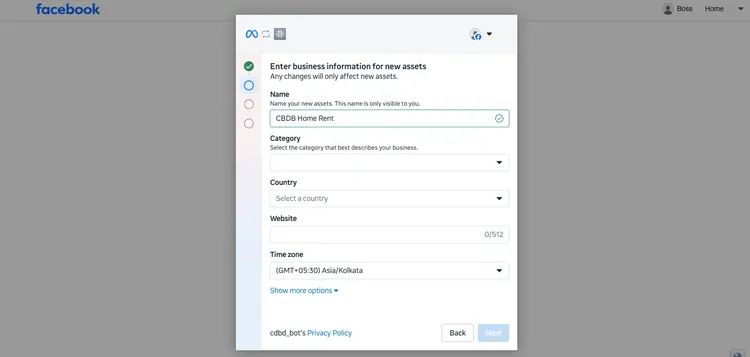
Add your business name
11
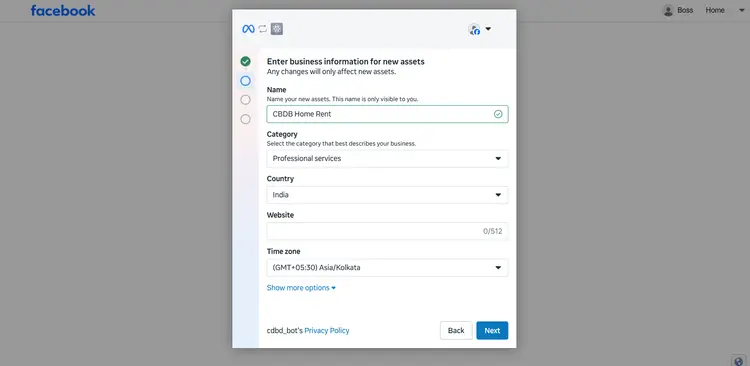
Add your website, select your country, and click 'Next'
12
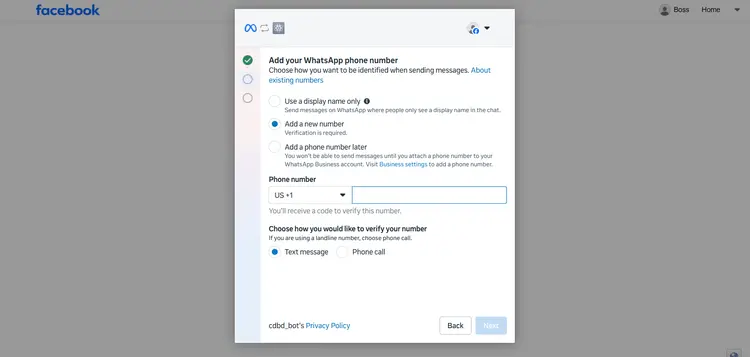
Click on 'Add a new number'
13
Enter your phone number, select the verification code, and click 'Next'
14
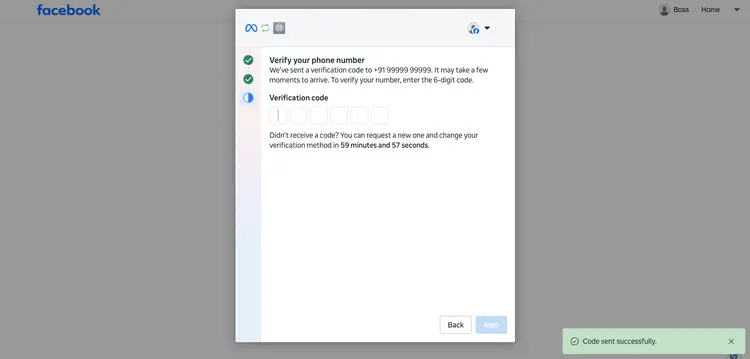
After entering the verification code, click 'Continue'
15
Wait for the verification to complete
16
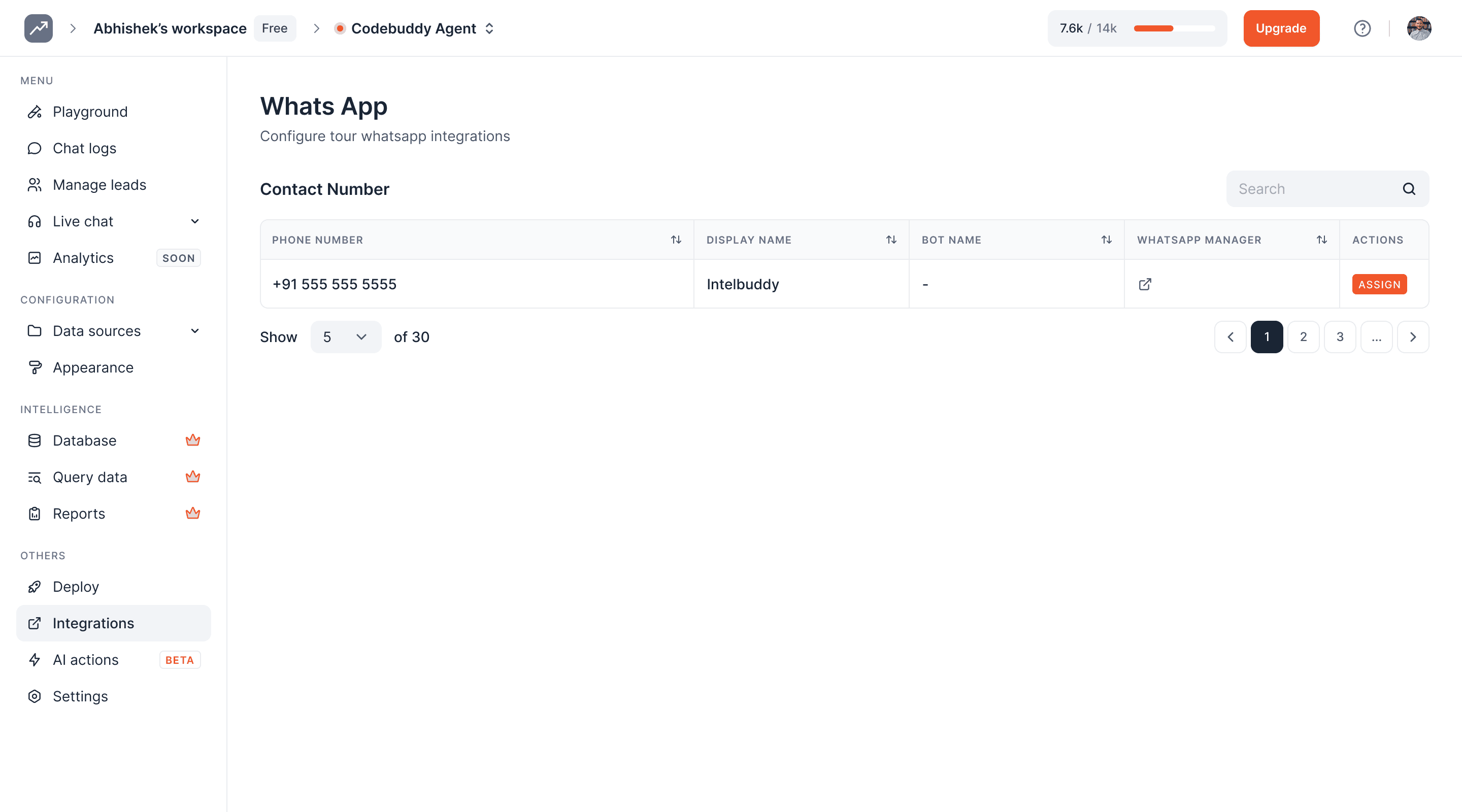
Integration is now complete. Check the connected WhatsApp number on the Integration page by clicking the 'Settings' icon
17
On this page, you can see the details of the WhatsApp integration, including phone number and AI agent display name
18
If the 'Assign' button is showing then click it to connect the AI agent with the WhatsApp account
19
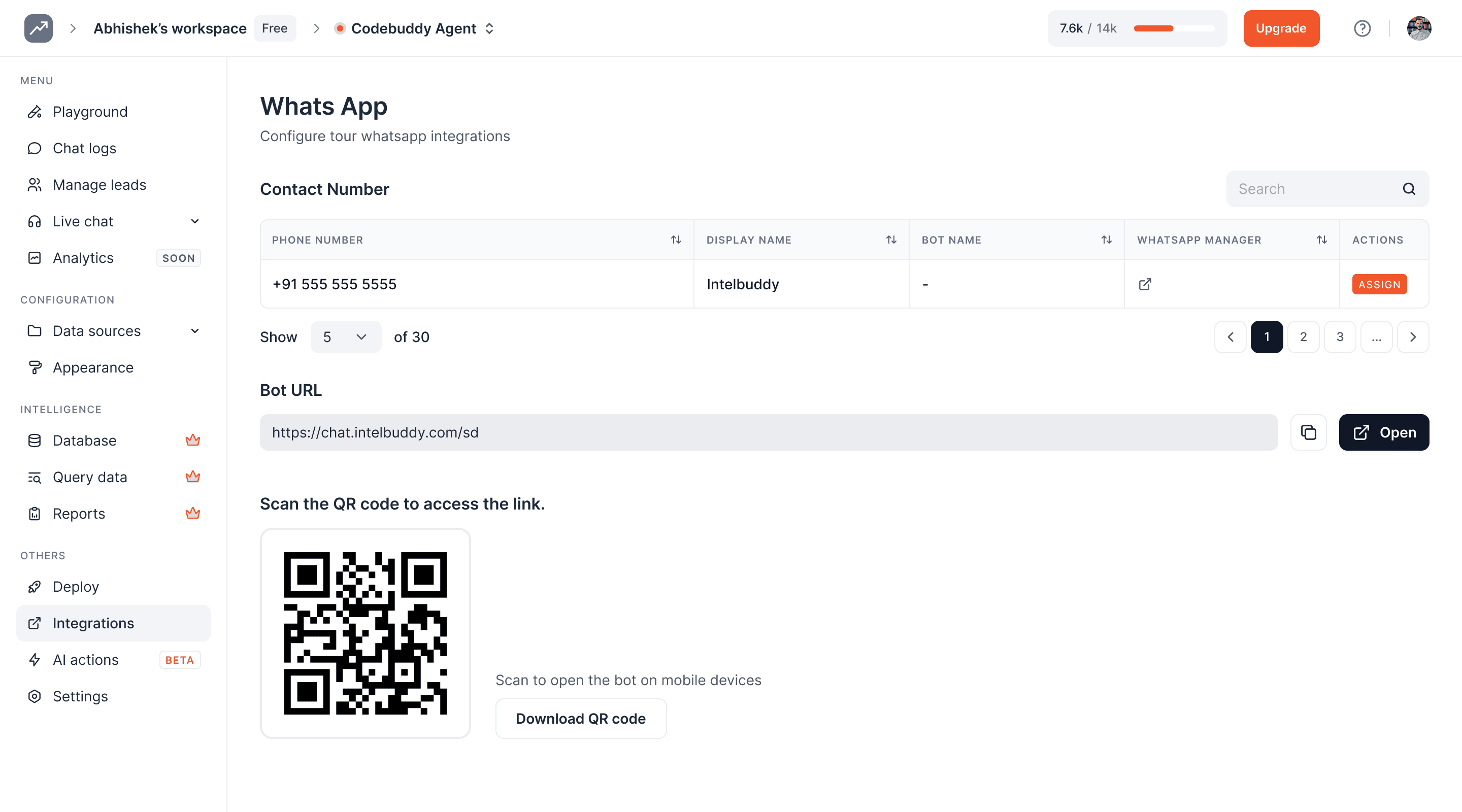
To install a WhatsApp chat icon on your website, use the provided code snippet to embed the WhatsApp QR code
20
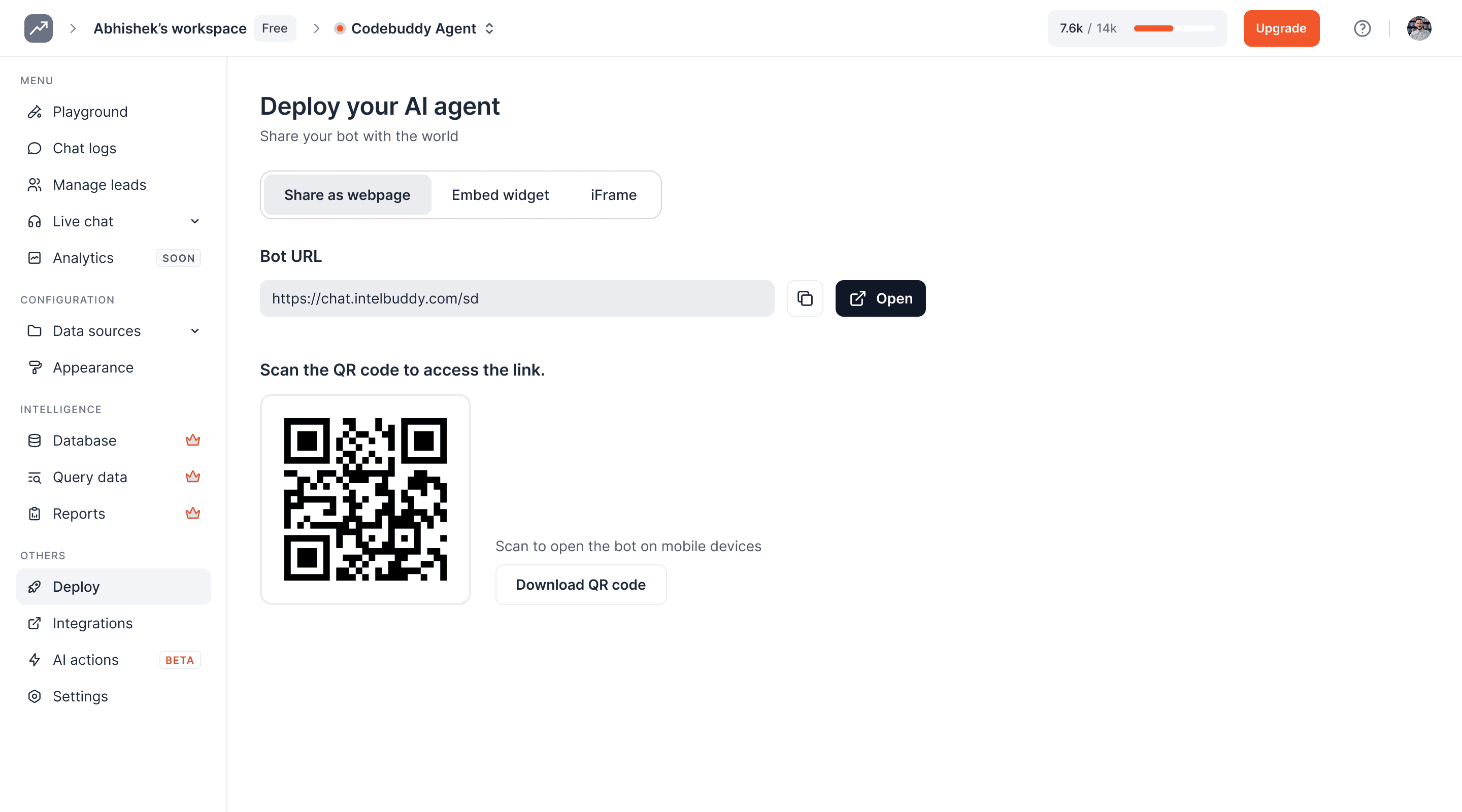
Once configured, share your WhatsApp account by downloading the QR code or using the WhatsApp link provided
21
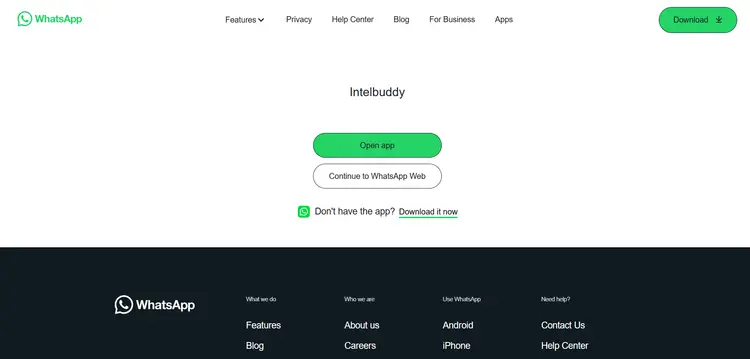
Copy your WhatsApp link, open it in a browser, or scan the QR code. Click 'Continue to Chat' to start
22
Users can chat in WhatsApp using the link or QR code and ask questions from the AI agent
23
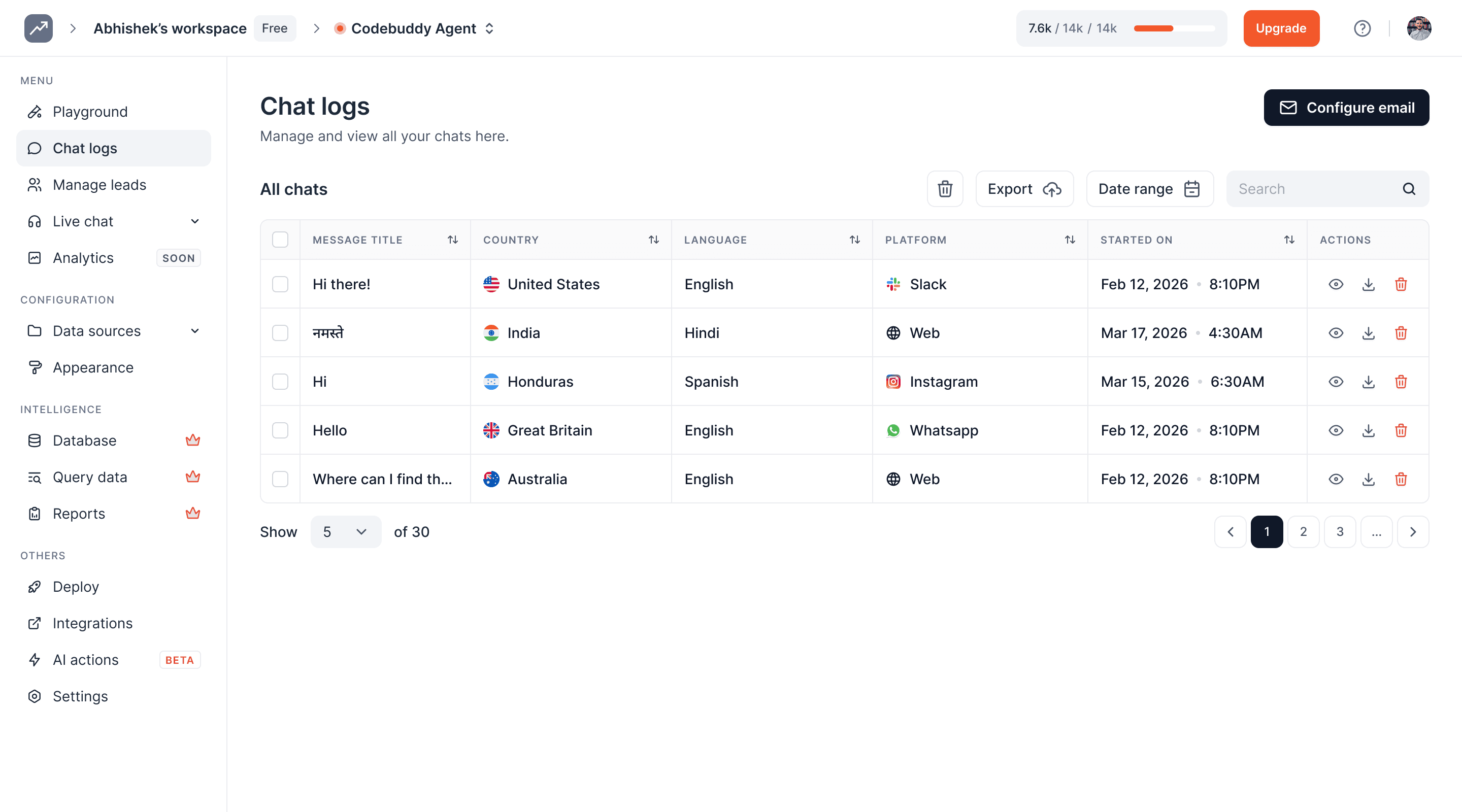
Check all conversations in your AI agent on the 'Chat History' page
24
Done 🚀 You have successfully integrated your WhatsApp account with IntelBuddy
Ready to transform your supports and insights? Join growing companies using Intelbuddy to automate support and make faster decisions.
Start for free. No credit card required. Cancel anytime.
© 2026 IntelBuddy. All rights reserved.