How to Integrate Intelbuddy With Slack Workspace
This training guide offers a step-by-step process for integrating Intelbuddy with business Facebook page. Once the AI agent is connected to Messenger, it will automatically begin responding to inquiries, enhancing customer engagement and support.

1
Navigate to https://app.intelbuddy.ai
2
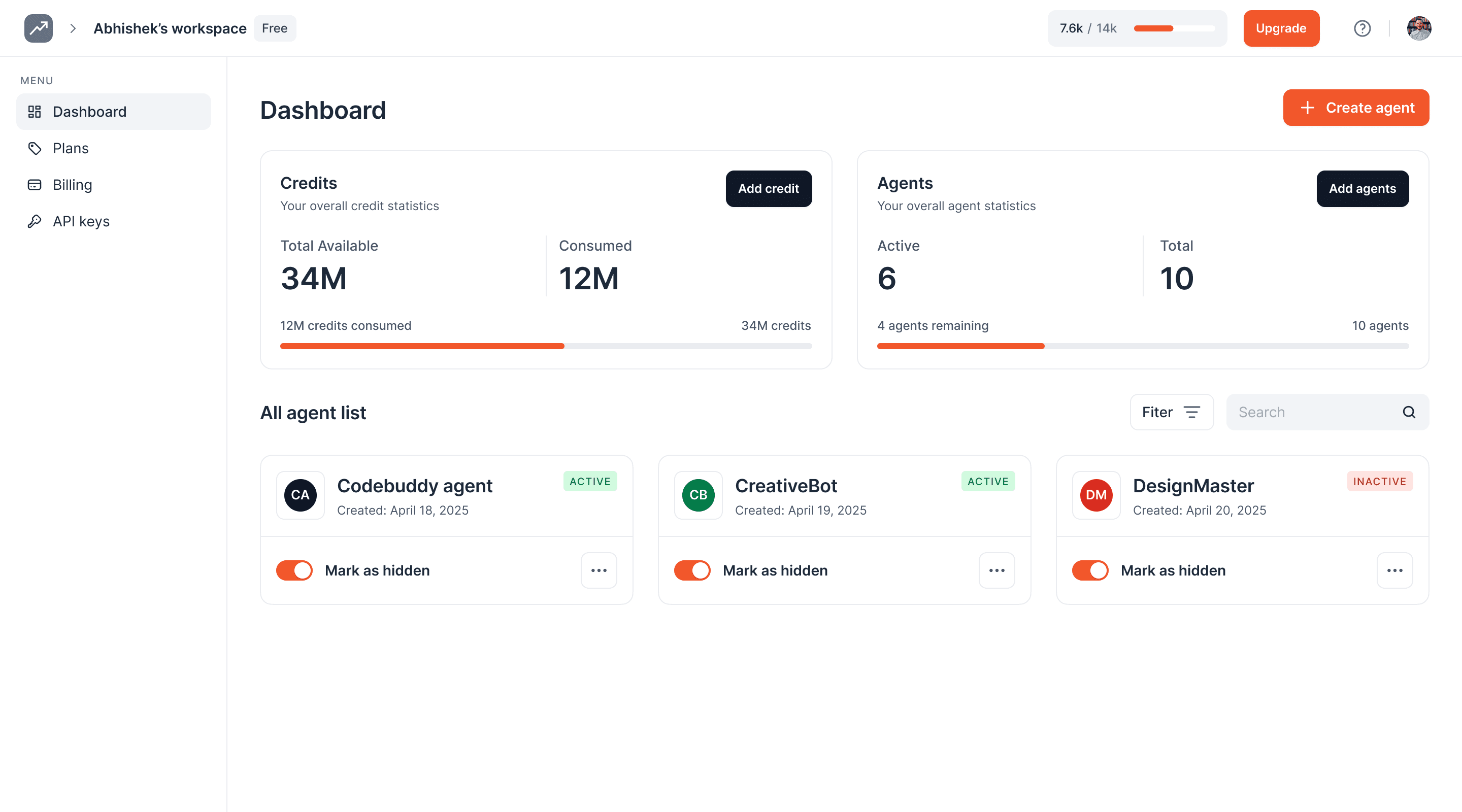
Click on the AI agent to open it
3
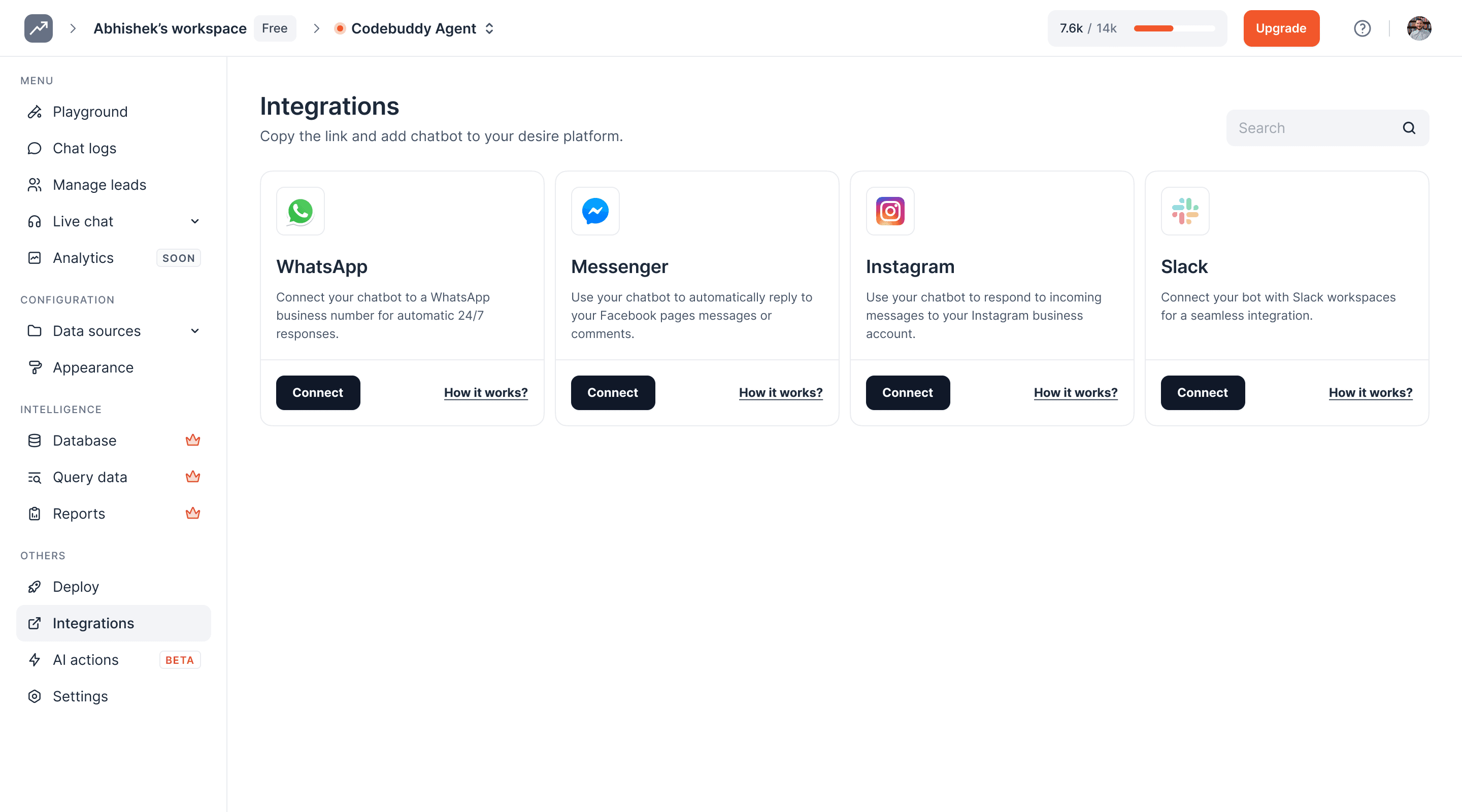
Click on 'Integrations' to open the integrations page
4
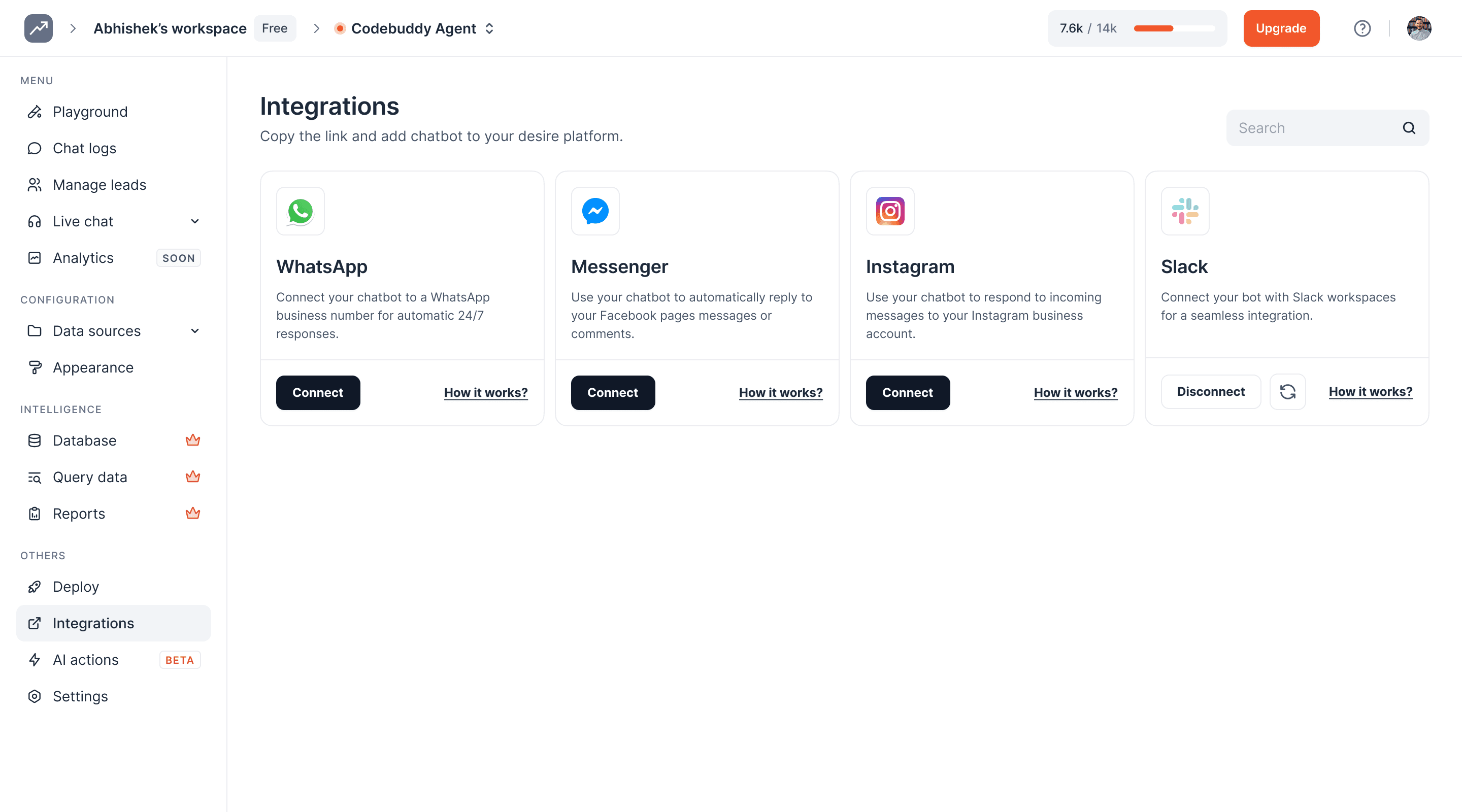
Click on the 'Connect' button under Slack
5
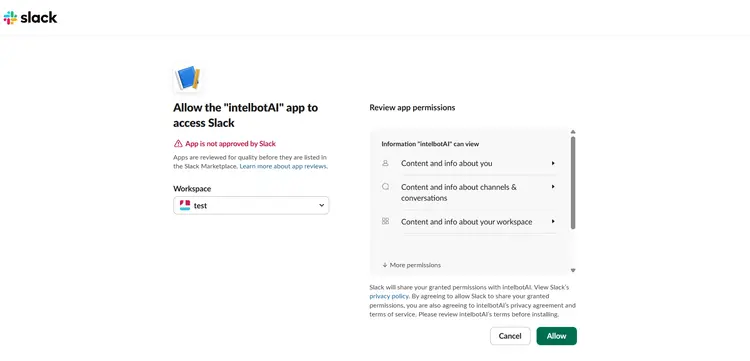
Click the 'Allow' button to authorize Intelbuddy in the workspace
6
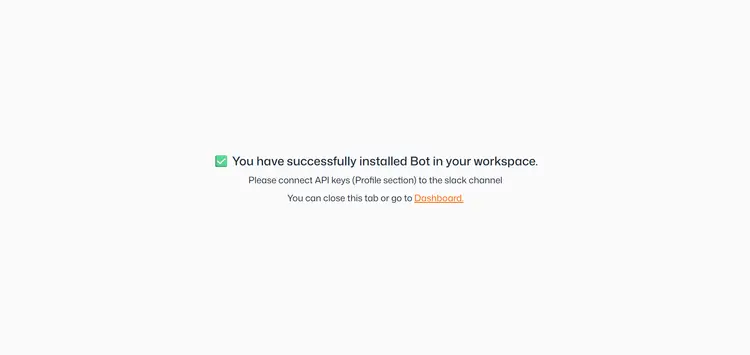
Confirmation screen appears showing Intelbuddy was successfully added
7
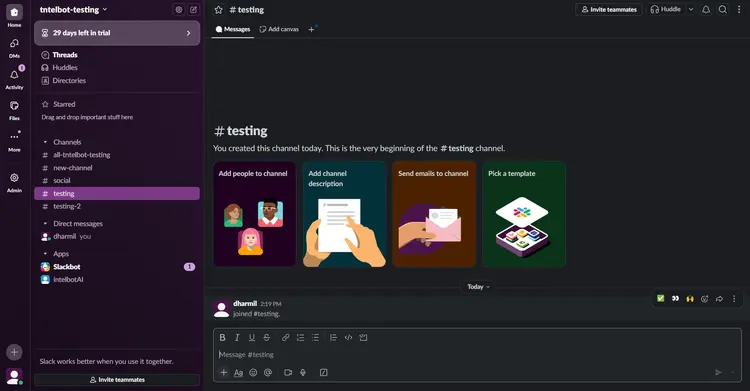
Open your Slack workspace and go to the channel where Intelbuddy want to integrate
8
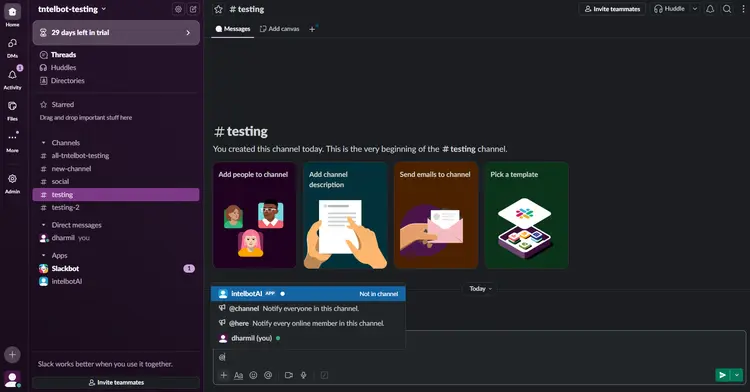
Start a conversation by mentioning the chatbot in the channel. Click on @Intelbuddy to interact
9
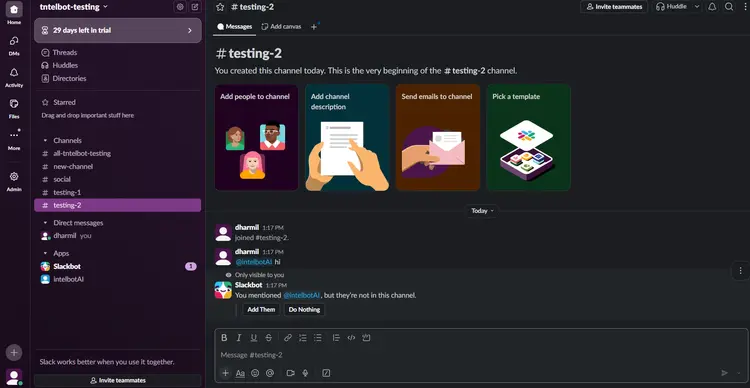
Click the 'Add button'
10
Once you see 'has been added to #channel by {your name}', start a new conversation mentioning @Intelbuddy again
11
Select @Intelbuddy and send a message
12
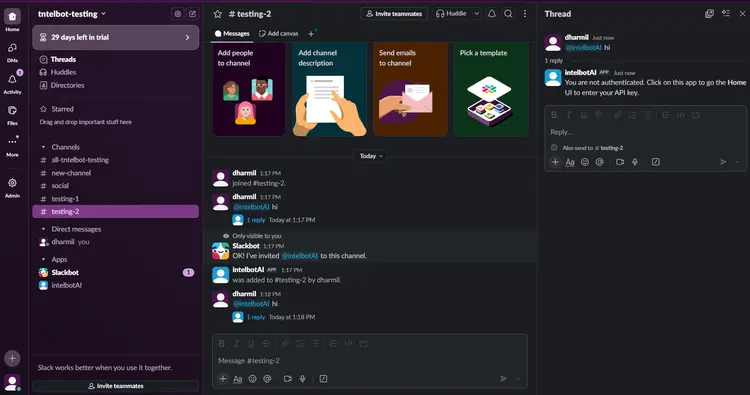
You will receive a reply in the thread. Now need to authenticate first so click on Intelbuddy
13
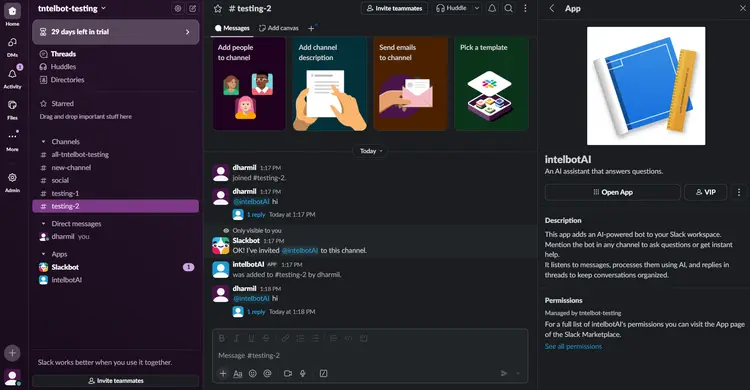
Click on Open app button
14
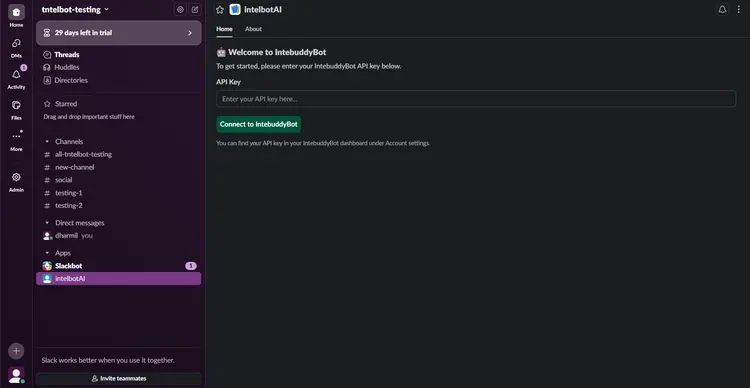
Here, need to add API key which is available in your dashboard under Account(Profile Section)
15
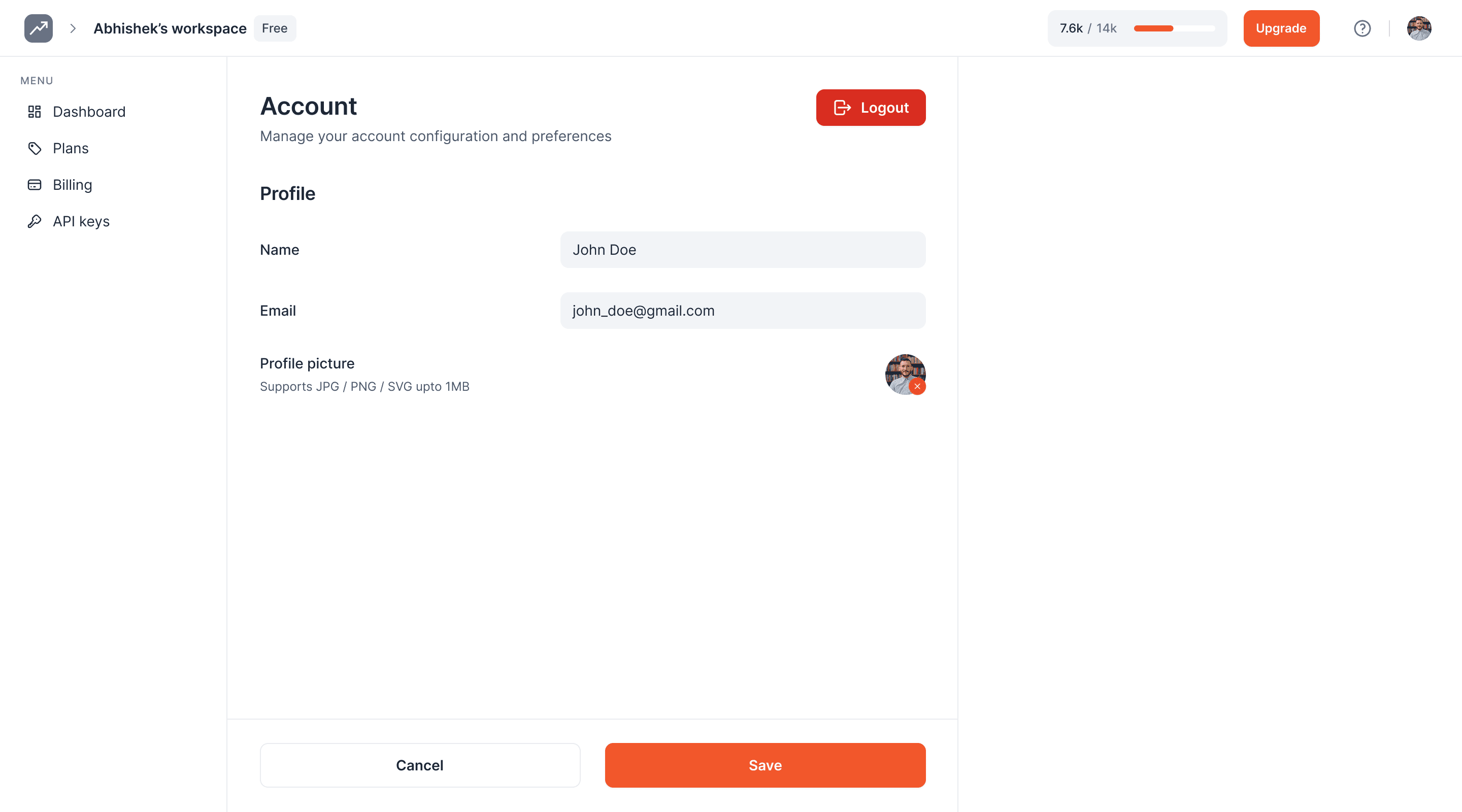
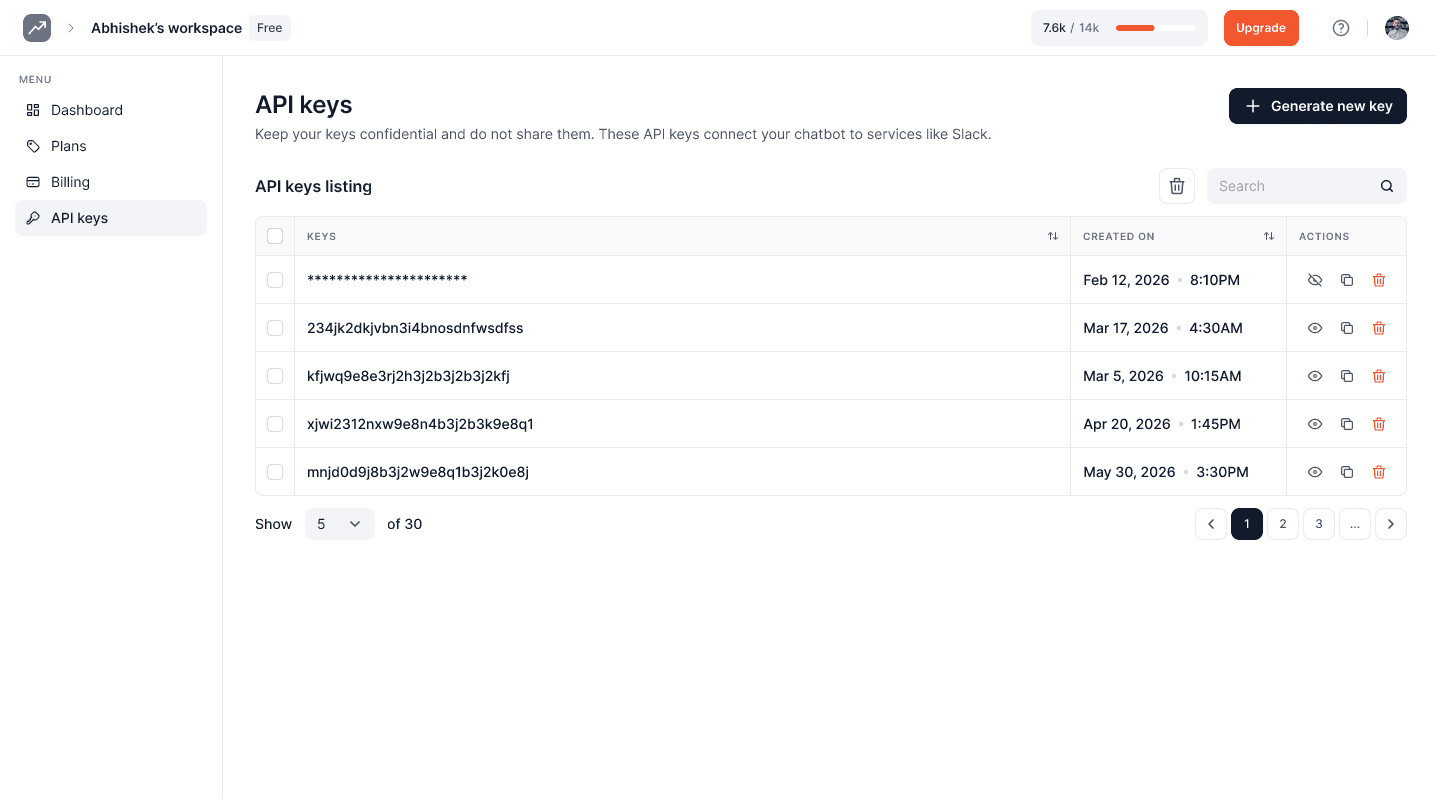
Go to the chatbot's 'Account' section
16
Click 'Generate New API Key'
17
Copy the API Key using the copy icon
18
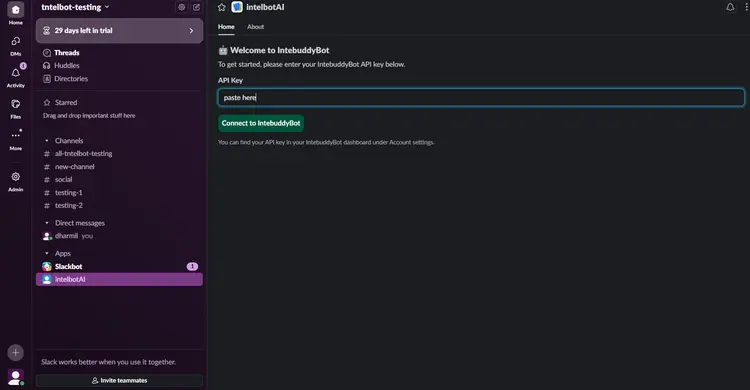
Go back to slack workspace Paste the API Key in Slack to connect Intelbuddy
19
Click 'Connect Intelbuddy to Slack'
20
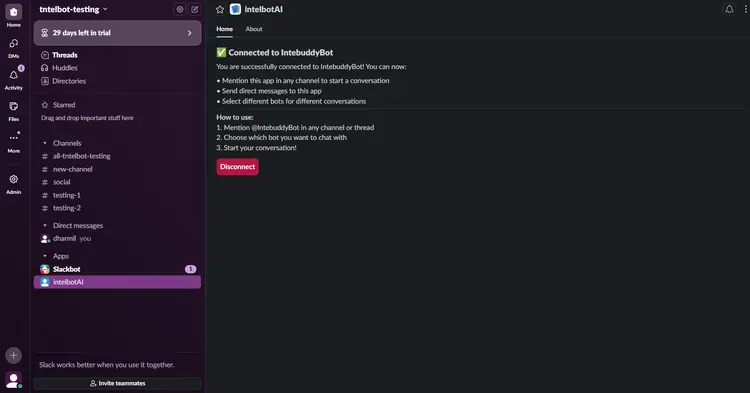
Chatbot is now configured and ready to use; start by sending a direct message or messaging in the channel
21
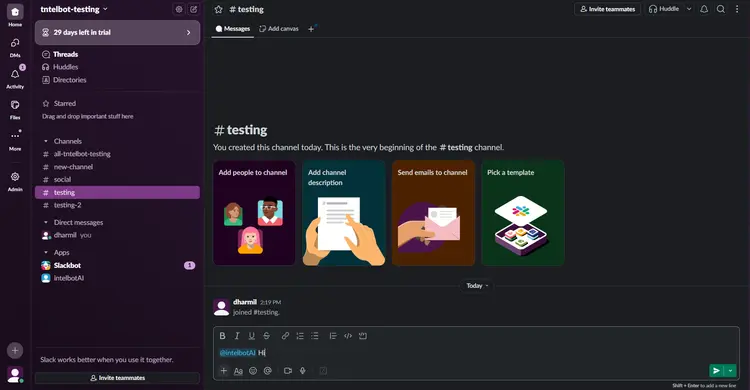
Open any channel and start a conversation by mentioning @Intelbuddy
22
Send a message to the chatbot (e.g., 'Hi') to check its response. You will receive a reply in the thread
23
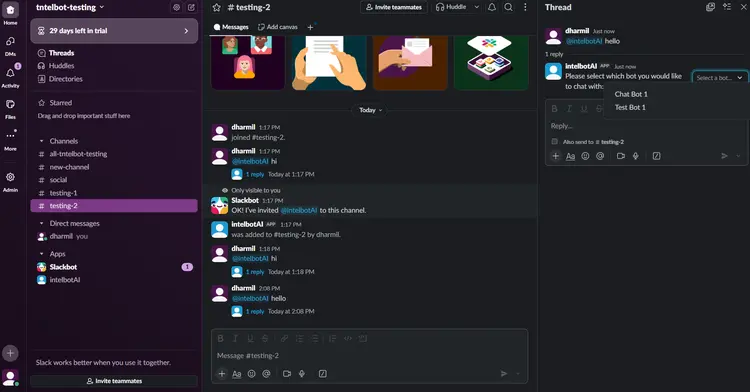
Open the thread to view the chatbot's reply
24
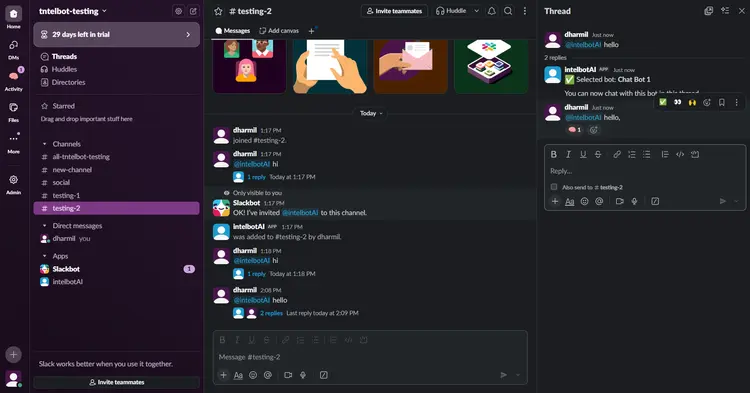
Choose the chatbot you want to interact with
25
Need to send message again after selecting the chatbot
26
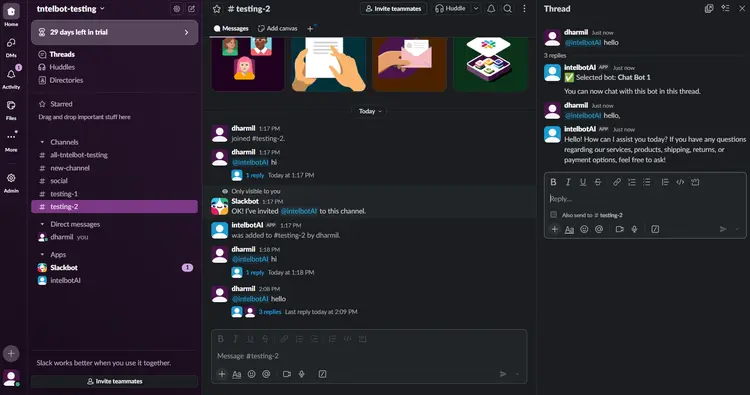
Ask a question; a 'Brain' emoji will appear indicating the chatbot is thinking
27
The emoji disappears once the chatbot provides the answer
28
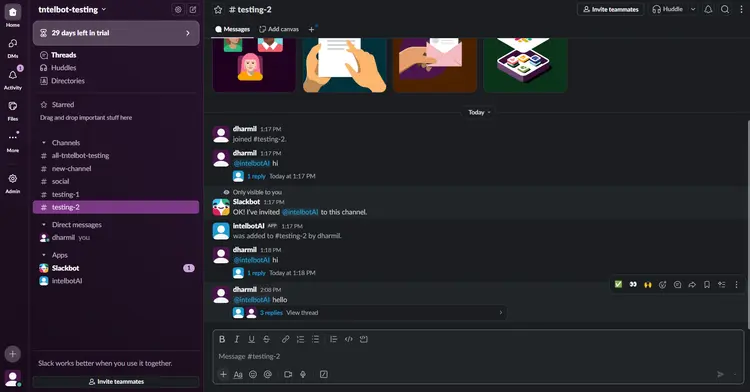
To chat with a different chatbot, start a new conversation and select the chatbot again
29
To remove Intelbuddy from Slack, open its profile and click on the Disconnect button
30
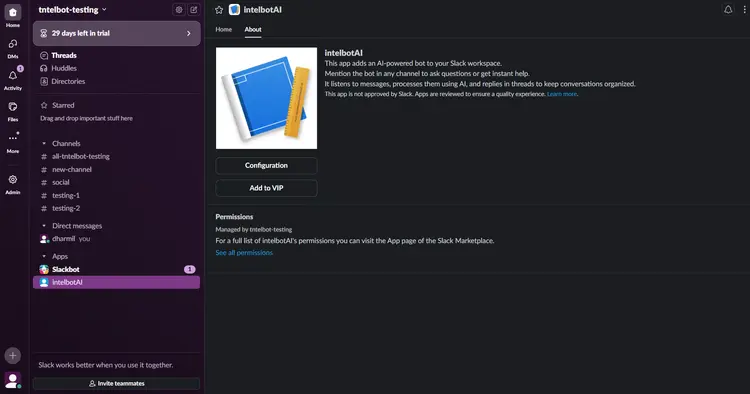
If it's still showing then go on about section and click on configuration and then after click on remove app to remove Intelbuddy from Slack
31
Done! 🚀 You have successfully integrated Intelbuddy with Slack
Ready to transform your supports and insights? Join growing companies using Intelbuddy to automate support and make faster decisions.
Start for free. No credit card required. Cancel anytime.
© 2026 IntelBuddy. All rights reserved.