Integration Setup Guide
Connect Zoom to IntelBuddy
Schedule Meetings
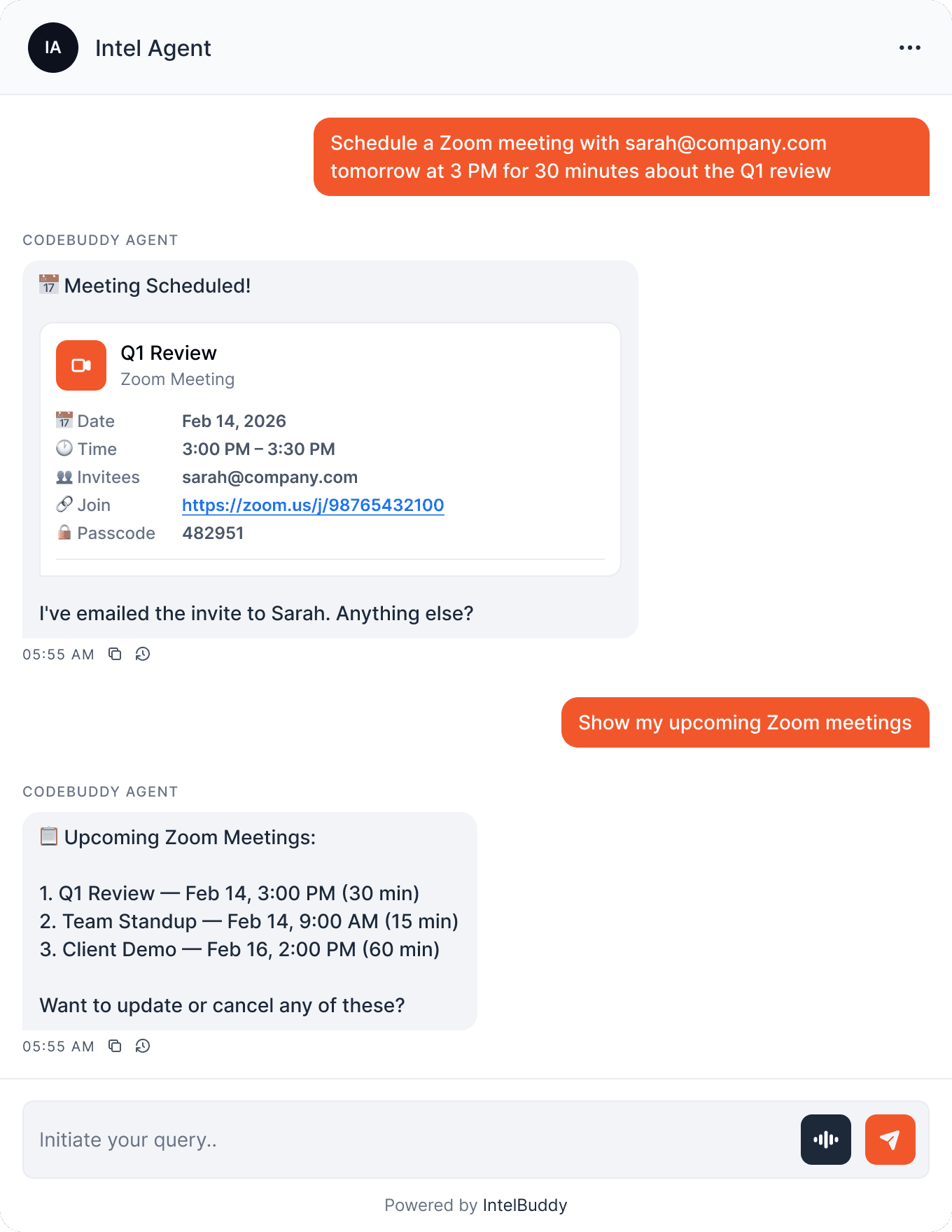
"Schedule a Zoom call with Sarah tomorrow at 3 PM" — done.
Get Meeting Links
Instantly generate and share join links with participants.
List Meetings
"Show my upcoming Zoom meetings" — see your full schedule.
Cancel & Reschedule
"Cancel my 4 PM call" or "Move it to Friday" — easy updates.
Invite Participants
Add attendees by email when scheduling or after the fact.
Meeting Settings
Set duration, passcode, waiting room, and recording preferences.
Before You Start
Prerequisites
Step-by-Step
Setup Instructions
Connect Zoom to IntelBuddy in about 10 minutes using a Server-to-Server OAuth app.

Create a Server-to-Server OAuth App
This app type gives IntelBuddy secure, long-lived access to your Zoom account without user login prompts.
Go to marketplace.zoom.us and sign in
Click "Develop" in the top menu → "Build App"
Find "Server-to-Server OAuth" and click "Create"
Name your app (e.g. "IntelBuddy Zoom") and click "Create"
🏝
Zoom Marketplace
💻
Develop
🔨
Build App
🔒
Server-to-Server OAuth
✓
Created
Why Server-to-Server? This app type doesn't require user interaction to authenticate. It uses Account ID, Client ID, and Client Secret for secure, automatic access.
Copy Your Credentials
After creation, Zoom shows your three credentials on the "App Credentials" tab.
On the app page, go to the "App Credentials" tab
Copy the Account ID
Copy the Client ID
Copy the Client Secret
marketplace.zoom.us/user/build → IntelBuddy Zoom → App Credentials
🔑 App Credentials
ACCOUNT ID
CLIENT ID
CLIENT SECRET
Copy All
Keep your Client Secret private. Never share it publicly or commit it to version control. If compromised, regenerate it from the Zoom Marketplace.
Add Required Scopes
Grant the app permission to create and manage meetings.
Go to the "Scopes" tab in your app settings
Click "+ Add Scopes"
Search for and add the following scopes:
meeting:write:admin
meeting:read:admin
user:read:admin
meeting:write
What these scopes do:
meeting:write:admin
— create and update meetings
meeting:read:admin
— list and view meeting details
user:read:admin
— read user info for scheduling
meeting:write
— delete/cancel meetings
IntelBuddy → Settings → Email (Gmail)
Configure Email (Gmail)
No API keys needed. Just choose your preferred search backend and click connect.
Sender Email *
you@example.com
App Password *
abcdefghijklmnop
Sender Name
Your Company Bot
Save & Connect
Cancel
Tip: Enter the App Password without spaces as a single 16-character string (e.g. abcdefghijklmnop).
Activate the App
Server-to-Server apps need to be explicitly activated before they work.
Go to the "Activation" tab
Click "Activate your app"
Confirm the activation
Don't skip this! The app won't work until it's activated. You'll see a green "Your app is activated" confirmation.
Paste Into IntelBuddy
Enter your three Zoom credentials in IntelBuddy.
Go to Settings → Integrations → External Tools
Find the Zoom card → click "Configure"
Paste your Account ID, Client ID, and Client Secret
Click "Save / Connect"
IntelBuddy → Settings → Integrations → Zoom
Configure Zoom
No API keys needed. Just choose your preferred search backend and click connect.
Account ID *
AbC1dEf2GhI3jKl4
Client ID *
MnO5pQr6StU7vWx8
Client Secret *
yZ9aBcDeFgHiJkLmNoPqRsTuVwXyZ
Save & Connect
Cancel
Verify the Connection
The Zoom card should show a green "Connected" badge.
Zoom
🟢
Connected
🎉
You're All Set!
Your IntelBuddy chatbot can now schedule, list, and manage Zoom meetings from chat.

Try It Out
Example Conversations
Here's what you can say to IntelBuddy now that Zoom is connected.
Quick Reference
Things You Can Say
Scheduling
"Schedule a Zoom call with …"
"Set up a 30-min meeting at …"
"Book a Zoom for Friday 2 PM"
Viewing
"Show my upcoming meetings"
"What Zoom calls do I have today?"
"Get the link for my next call"
Updating
"Reschedule the standup to 10 AM"
"Add john@co.com to the demo"
"Change the topic to Q2 Planning"
Cancelling
"Cancel my 4 PM Zoom"
"Delete the client demo"
"Remove Friday's meeting"
Need Help?
Troubleshooting
"Invalid client_id or account_id" error
Double-check all three credentials (Account ID, Client ID, Client Secret) are copied correctly. Make sure there are no extra spaces or line breaks.
App is not activated
Go to the "Activation" tab in the Zoom Marketplace and click "Activate your app". The app won't work until this step is completed.
insufficient_scope
error
Go to the "Scopes" tab and make sure all four scopes are added: meeting:write:admin, meeting:read:admin, user:read:admin, and meeting:write. After adding scopes, re-activate the app.
Meetings created for the wrong user
Server-to-Server OAuth apps act on behalf of the account owner by default. If your organization uses multiple Zoom users, you may need to specify the user email when scheduling.
Free account limitations
Free Zoom accounts have a 40-minute limit on group meetings and can only host one meeting at a time. Upgrade to a paid Zoom plan for unlimited duration.
"User not found" when scheduling
The email used for scheduling must belong to a user in your Zoom account. If you're on a single-user account, meetings are created under your account automatically.

Ready to transform your supports and insights? Join growing companies using Intelbuddy to automate support and make faster decisions.
Start for free. No credit card required. Cancel anytime.
© 2026 IntelBuddy. All rights reserved.