Integration Setup Guide

Connect WhatsApp to IntelBuddy
Deploy your AI chatbot on the world's most popular messaging app. 2 billion+ users, one setup.
⚠️
This Integration Requires a Meta Business Account
WhatsApp uses Meta's Business Platform (formerly Facebook). You'll need a Meta Business account and access to the WhatsApp Business API. This guide walks you through every step.
Auto-Reply Bot
Your AI responds to WhatsApp messages 24/7 with intelligent, contextual replies.
Multi-Language
Auto-detect and reply in 50+ languages — no configuration needed.
Business Profile
Customers see your verified business name, logo, and description.
Rich Messages
Send text, links, and formatted messages with bold and lists.
Human Handover
Seamlessly transfer complex conversations to live agents.
Analytics
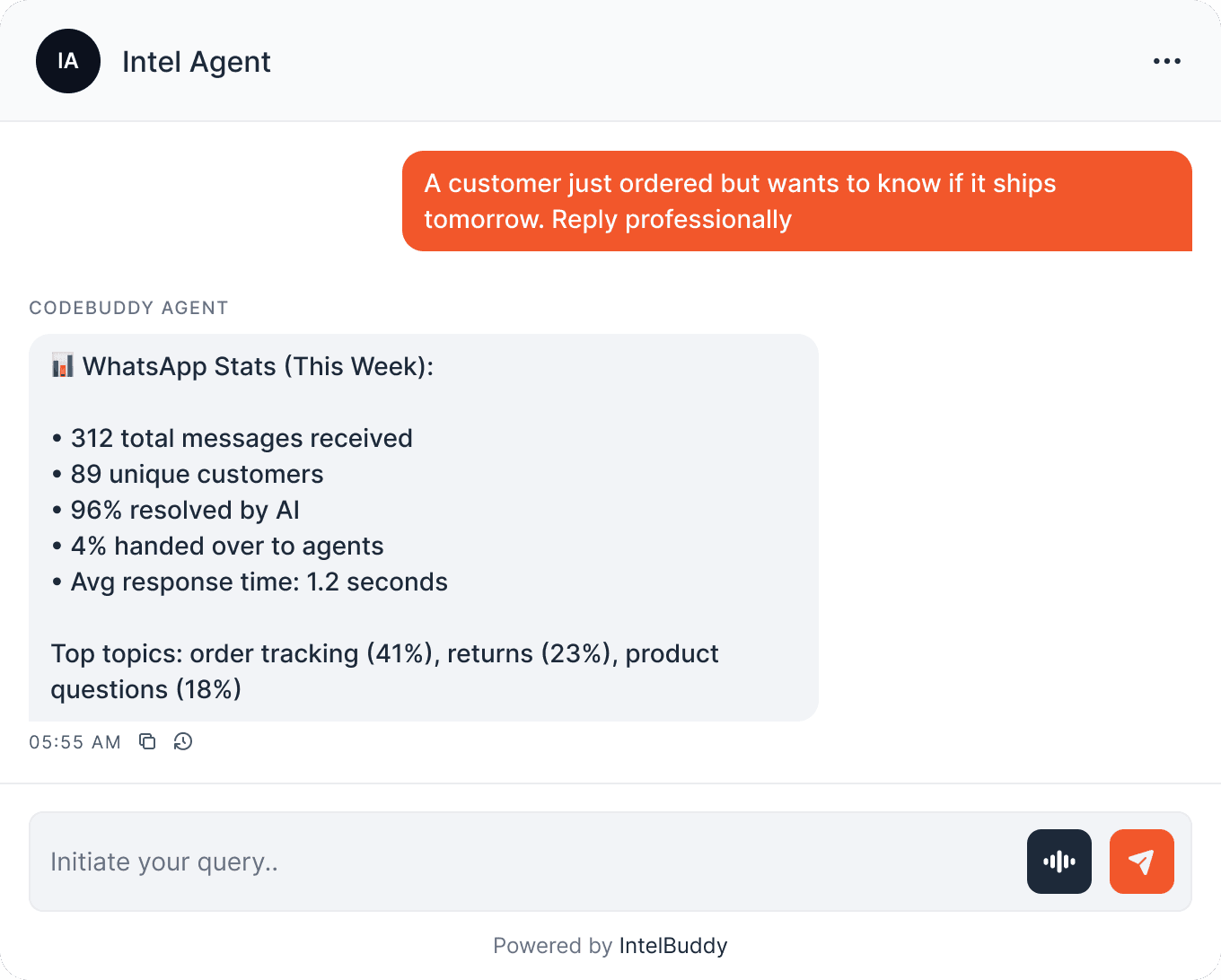
Track every WhatsApp conversation in your IntelBuddy dashboard.
Before You Start
Prerequisites
How It Works
Architecture Overview
Here's how messages flow between your customers and IntelBuddy via WhatsApp.

1
Create a Meta Developer App
Set up a Meta app that will host your WhatsApp Business API integration.
Click "Create App"
Select "Business" as the app type
Enter an app name (e.g. "IntelBuddy WhatsApp") and select your Meta Business account
Click "Create App"
💻
Meta for Developers
📁
My Apps
➕
Create App
✓
App Created
2
Add WhatsApp to Your App
Enable the WhatsApp product and get your test credentials.
In your app dashboard, scroll to "Add products to your app"
Find "WhatsApp" and click "Set up"
Select your Meta Business Account when prompted
You'll be taken to the WhatsApp → API Setup page
Note your Phone Number ID and the Temporary Access Token
Test number included: Meta provides a test phone number you can use right away. For production, you'll add your own business number later.
3
Generate a Permanent Access Token
The temporary token expires in 24 hours. Create a permanent one for production use.
Go to Business Settings at business.facebook.com/settings
Click "System Users" in the left sidebar
Click "Add" to create a new System User (Admin role)
Click "Generate New Token"
Select your app and add the permission: whatsapp_business_messaging
Click "Generate Token" and copy it immediately
business.facebook.com/settings/system-users
🔑 System User Token
PERMANENT ACCESS TOKEN
Copy Token
Done
Copy and save this token securely! You won't be able to see it again. If lost, you'll need to generate a new one.
4
Get Your Phone Number ID
Find the Phone Number ID in the WhatsApp API Setup page.
Go back to your app → WhatsApp → API Setup
Under "From", you'll see a dropdown with your phone number
Below the number, copy the Phone Number ID (a numeric string)
developers.facebook.com/apps/YOUR_APP → WhatsApp → API Setup
API Setup
FROM
+1 555-123-4567 (Test Number)
Phone Number ID:
110234567890123
5
Paste Into IntelBuddy
Enter your Access Token and Phone Number ID in IntelBuddy.
Go to Settings → Integrations → External Tools
Find the WhatsApp card → click "Configure"
Paste your Access Token and Phone Number ID
Click "Save / Connect"
IntelBuddy will show you a Webhook URL and Verify Token — keep this page open
IntelBuddy → Settings → Integrations → WhatsApp
Configure WhatsApp
Access Token *
EAABsbCS1iHgBAKx7ZC2mP5ZAq8NdLZB3kT9...
Phone Number ID *
110234567890123
Sender Name
Your Company Bot
GENERATED BY INTELBUDDY (copy these for Step 6):
Webhook URL
https://api.intelbuddy.com/webhook/wa/abc123
Verify Token
ib_verify_xYz789AbC
Save & Connect
Cancel
6
Configure the Webhook in Meta
Tell Meta where to send incoming WhatsApp messages by setting up the webhook.
Go back to developers.facebook.com → your app → WhatsApp → Configuration
Under "Webhook", click "Edit"
Paste the Webhook URL from IntelBuddy
Paste the Verify Token from IntelBuddy
Click "Verify and Save"
Under "Webhook fields", click "Manage" and subscribe to messages
💻
Your App
💬
⚙️
Configuration
🔗
Webhook
✓
Verified
Subscribe to "messages"! After verifying the webhook, you must also subscribe to the messages webhook field. Without this, IntelBuddy won't receive incoming messages.
7
Verify the Connection
The WhatsApp card in IntelBuddy should show "Connected". Send a test message!
🟢
Connected
Test it! Send a WhatsApp message to your business number. You should get an AI reply within seconds.
🎉
You're All Set!
Your IntelBuddy AI chatbot is now live on WhatsApp. Customers can message your number anytime.

Try It Out
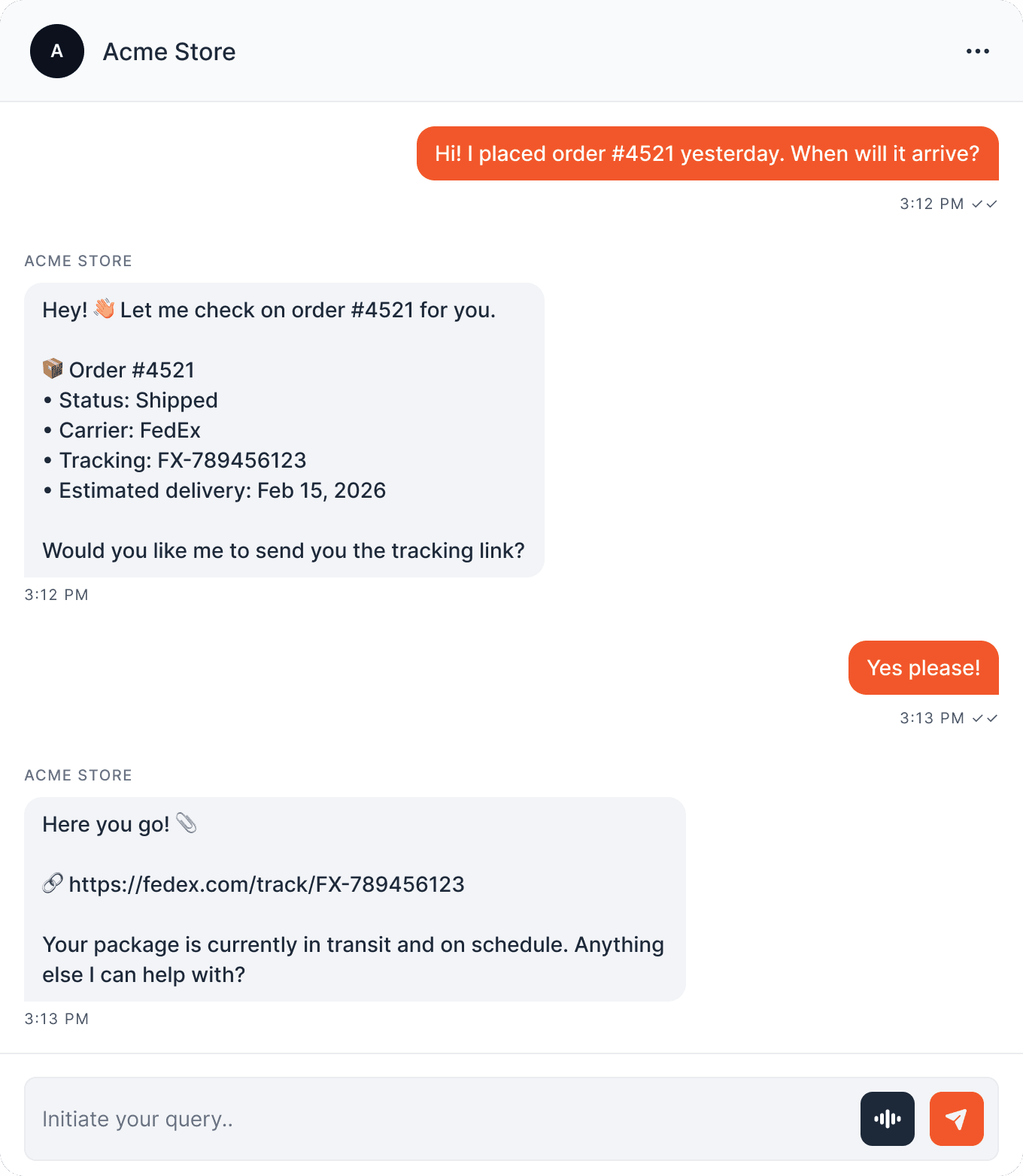
What Customers See on WhatsApp
Here's how your customers interact with your AI bot on WhatsApp.
💻 Manage WhatsApp from the IntelBuddy dashboard:
Quick Reference
What Your Bot Can Do
Customer Support
Order tracking & status
Returns & refund processing
FAQ auto-responses
Sales & Marketing
Product recommendations
Pricing & availability
Promotional messages
Appointments
Book & reschedule
Send reminders
Collect pre-visit info
Operations
Human handover
Multi-language support
Business hours routing
Need Help?
Troubleshooting
Webhook verification fails
Make sure the Webhook URL and Verify Token from IntelBuddy are pasted exactly — no extra spaces or trailing slashes. The IntelBuddy server must be reachable from Meta's servers.
Bot doesn't reply to messages
heck that you've subscribed to the messages webhook field in Meta. Also verify the Access Token hasn't expired — use a permanent System User token, not the temporary one.
"Unauthorized" or token errors
The temporary access token expires in 24 hours. Generate a permanent token via System Users in Business Settings (Step 3). Also check the token has the whatsapp_business_messaging permission.
Messages only work with test numbers
During development, you can only send to numbers added as "test numbers" in the API Setup page. To go live with all numbers, complete Meta's business verification process.
24-hour messaging window
WhatsApp requires customers to message you first. You can only reply within 24 hours of their last message. After that, you need to use pre-approved message templates (configured in Meta Business).
Phone number already registered
The number can't already be registered on WhatsApp (personal or business). You'll need to deregister it first, or use a new number dedicated to the API.

Ready to transform your supports and insights? Join growing companies using Intelbuddy to automate support and make faster decisions.
Start for free. No credit card required. Cancel anytime.
© 2026 IntelBuddy. All rights reserved.