Integration Setup Guide

Connect Slack to IntelBuddy
Send messages, read channel history, and keep your team updated — all from your chatbot.
Post Messages
"Post in #general that the deploy is done" — instant channel updates.
Read History
"What was discussed in #marketing today?" — browse channel history.
Announcements
"Announce new pricing in #sales and #support" — multi-channel.
Notifications
Trigger Slack alerts from events — new leads, tasks, errors.
Status Updates
"Post the standup summary to #engineering" — automated reports.
Default Channel
Set a default channel so quick messages go to the right place.
Before You Start
Prerequisites
Step-by-Step
Setup Instructions
Connect Slack to IntelBuddy in about 10 minutes.

Create a Slack App
Head to the Slack API portal and create an app for your workspace.
Go to api.slack.com/apps
Click "Create New App" → choose "From scratch"
Enter an App Name (e.g. "IntelBuddy Bot")
Select your workspace from the dropdown
Click "Create App"
Already have an app? Skip to Step 2. You can reuse any existing Slack app — just make sure it has the right scopes.
Add Bot Token Scopes
Grant the app permissions to read channels and post messages.
In your app settings, click "OAuth & Permissions" in the left menu
Scroll to "Scopes → Bot Token Scopes"
Click "Add an OAuth Scope" and add these three scopes:
channels:read
channels:history
chat:write
⚙️
App Settings
🔑
OAuth & Permissions
📋
Bot Token Scopes
✓
3 Scopes Added
What these scopes do:
channels:read
— list public channels
channels:history
— read message history
chat:write
— post messages as the bot
Install App & Copy Bot Token
Install the app to your workspace and grab the Bot User OAuth Token.
On the "OAuth & Permissions" page, click "Install to Workspace"
Review the permissions and click "Allow"
After installation, copy the Bot User OAuth Token
api.slack.com/apps/YOUR_APP → OAuth & Permissions
BOT USER OAUTH TOKEN
Copy
Reinstall App
The token starts with xoxb-. Make sure you copy the Bot User token, not the User token. Keep it private.
Paste Into IntelBuddy
Enter the Bot Token and optional default channel in IntelBuddy.
Go to Settings → Integrations → External Tools
Find the Slack card → click "Configure"
Paste your Bot Token and set a default channel
Click "Save / Connect"
IntelBuddy → Settings → Integrations → Slack
Configure Slack
Bot Token *
Default Channel
#general
Save & Connect
Cancel
Default Channel is optional. Include the # symbol (e.g. #general). If set, quick messages go here automatically.
Invite the Bot to Channels
The bot must be a member of any channel you want it to post in. This is a Slack requirement.
Open Slack and go to the channel (e.g. #general)
In the message box, type /invite @YourAppName
Select your bot from the list and press Enter
Repeat for every channel where the bot should post
Your Workspace
#
general
YO
You
2:30 PM
/invite @IntelBuddy Bot
S
Slackbot
2:30 PM
✔ IntelBuddy Bot has been added to #general
Critical step! If the bot is not invited to a channel, messages will fail with a channel_not_found or not_in_channel error.
Verify the Connection
The Slack card should show a green "Connected" badge.
Slack
🟢
Connected
🎉
You're All Set!
Your IntelBuddy chatbot can now post messages and read history from Slack channels.

Try It Out
Example Conversations
Here's what you can say to IntelBuddy, and what it looks like in Slack.
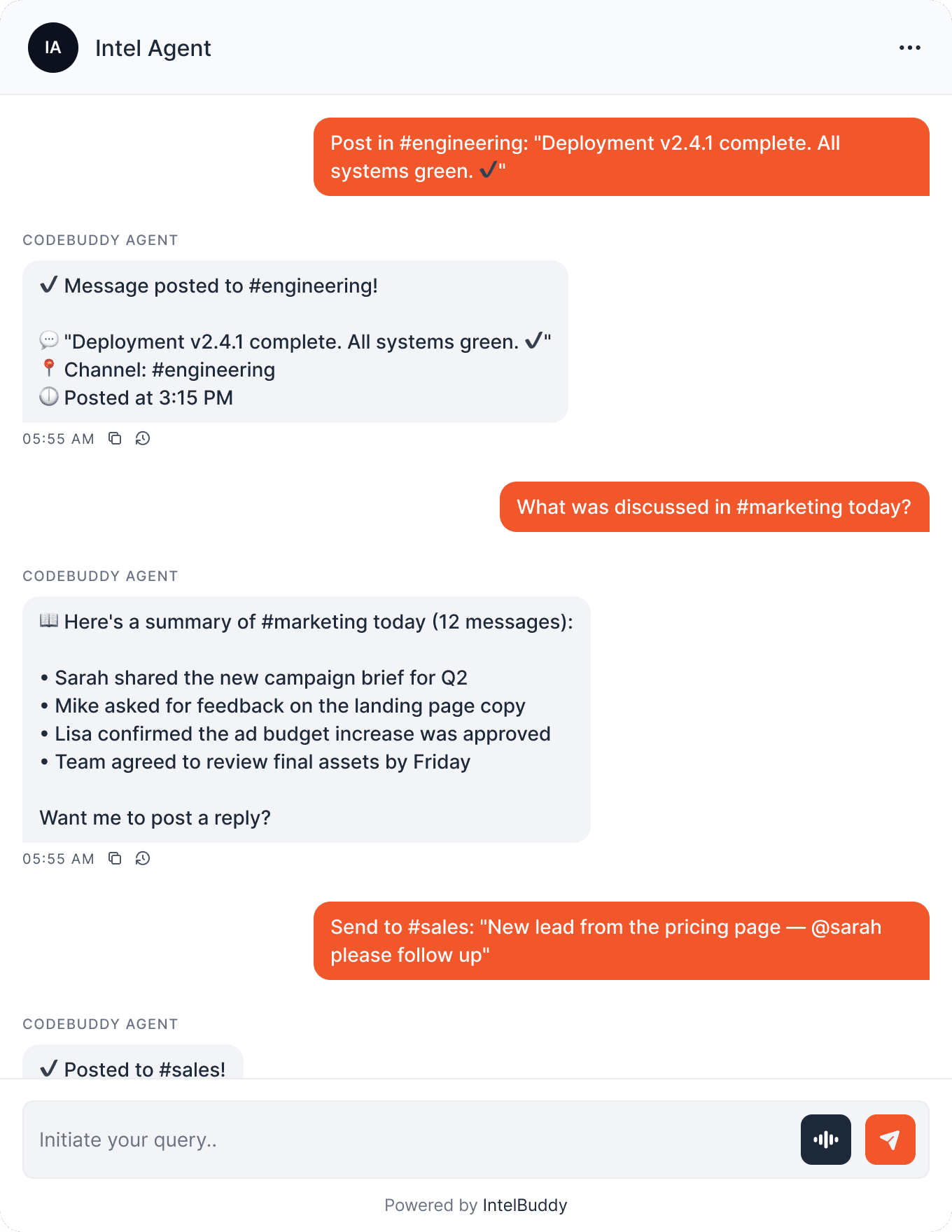
👆 What that looks like in Slack:
Your Workspace
#
general
IB
IntelBuddy Bot
APP
3:15 PM
Deployment v2.4.1 complete. All systems green. ✔
JD
John Doe
3:16 PM
Nice! 🎉 Any issues noted during rollout?
Quick Reference
Things You Can Say
Posting
"Post in #channel: …"
"Send a Slack message to #…"
"Announce in #… that …"
Reading
"What was discussed in #…?"
"Summarize #… from today"
"Show recent messages in #…"
Notifications
"Alert #ops if errors spike"
"Notify #sales about new leads"
"Post daily standup to #…"
Multi-Channel
"Post this to #… and #…"
"Send to all team channels"
"Announce to #sales and #support"
Need Help?
Troubleshooting
channel_not_found
error
The bot is not a member of that channel. Go to the channel in Slack and type /invite @YourAppName to add the bot.
not_in_channel
error
Same fix — the bot needs to be explicitly invited to each channel. Slack doesn't grant automatic access.
not_in_channel
or token rejected
Make sure you copied the Bot User OAuth Token (starts with xoxb-), not the User token or Signing Secret. Reinstall the app if needed.
missing_scope
error
Go back to OAuth & Permissions and verify all three scopes (channels:read, channels:history, chat:write) are added. Then reinstall the app.
Bot can't read private channels
The basic scopes only cover public channels. For private channels, add groups:read and groups:history scopes, and invite the bot to the private channel.
Messages go to the wrong channel
Specify the channel in your message (e.g. "Post in #engineering: ..."). If you always use one channel, set the Default Channel in IntelBuddy settings.

Ready to transform your supports and insights? Join growing companies using Intelbuddy to automate support and make faster decisions.
Start for free. No credit card required. Cancel anytime.
© 2026 IntelBuddy. All rights reserved.