Integration Setup Guide

Connect Google Sheets to IntelBuddy
Read Data
"Show the sales numbers from the Q1 sheet" — instant data retrieval.
Write & Append
"Add a new row with today's leads" — update sheets in real time.
Analyze Data
"What's the average deal size this month?" — ask questions about your data.
Search Rows
"Find the row for customer Acme Corp" — search across columns.
List Sheets
"What tabs are in the tracker spreadsheet?" — browse sheet structure.
Bulk Operations
"Update status to 'Done' for all completed tasks" — batch updates.
Before You Start
Prerequisites
Step-by-Step
Setup Instructions
Connect Google Sheets to IntelBuddy using OAuth in about 10 minutes.

Enable the Google Sheets API
Turn on the Sheets API in your Google Cloud project.
Go to console.cloud.google.com
Select or create a project
Go to APIs & Services → Library
Search for "Google Sheets API"
Click on it and click "Enable"
☁️
Google Cloud Console
📚
API Library
📋
Google Sheets API
✓
Enabled
Same project as Calendar? If you already set up Google Calendar with IntelBuddy, reuse the same Cloud project. Just enable the Sheets API alongside Calendar.
Create OAuth Credentials
Generate a Client ID and Client Secret for Sheets access.
Go to APIs & Services → Credentials
Click "+ Create Credentials" → "OAuth client ID"
Set application type to "Web application"
Name it (e.g. "IntelBuddy Sheets")
Under "Authorized redirect URIs", add the redirect URL from IntelBuddy (see Step 4)
Click "Create"
Copy the Client ID and Client Secret
console.cloud.google.com → APIs & Services → Credentials
🔑 OAuth Client Created
CLIENT ID
CLIENT SECRET
Copy All
Configure the OAuth Consent Screen
Set up the consent screen for authorizing spreadsheet access.
Go to APIs & Services → OAuth consent screen
Choose "External" user type (or "Internal" for Workspace)
Fill in App name and support email
Under Scopes, add: https://www.googleapis.com/auth/calendar
Under Test users, add your Google email
Click "Save and Continue"
Scope explanation: The spreadsheets scope grants read and write access. IntelBuddy only accesses sheets you explicitly reference in conversation.
Paste Into IntelBuddy
Enter your credentials and configure the redirect URI.
Go to Settings → Integrations → External Tools
Find Google Sheets → click "Configure"
Paste your Client ID and Client Secret
Copy the Redirect URI shown by IntelBuddy
Add this URI to Google Cloud's "Authorized redirect URIs"
Click "Save / Connect"
IntelBuddy → Settings → Integrations → Google Sheets
Configure Google Sheets
Client ID *
987654321-xyzabc.apps.googleusercontent.com
Client Secret *
GOCSPX-ShEeTs1234AbCdEfGh
COPY THIS REDIRECT URI TO GOOGLE CLOUD:
Save & Connect
Cancel
Authorize with Google
Click "Authorize" to open Google's consent screen and grant access.
Click the "Authorize with Google" button
Select your Google account
Review permissions and click "Allow"
You'll be redirected back to IntelBuddy
IntelBuddy wants to access your Google Account
📋 See, edit, create, and delete all your Google Sheets spreadsheets
🔍 View the titles of spreadsheets you can access
Cancel
Allow
Revoke anytime at myaccount.google.com/permissions. IntelBuddy only touches sheets you mention.
Verify the Connection
The Google Sheets card should show "Connected".
Google Sheets
🟢
Connected
🎉
You're All Set!
Your IntelBuddy chatbot can now read, write, search, and analyze Google Sheets data.

Try It Out
Example Conversations
Here's what you can say to IntelBuddy now that Google Sheets is connected.
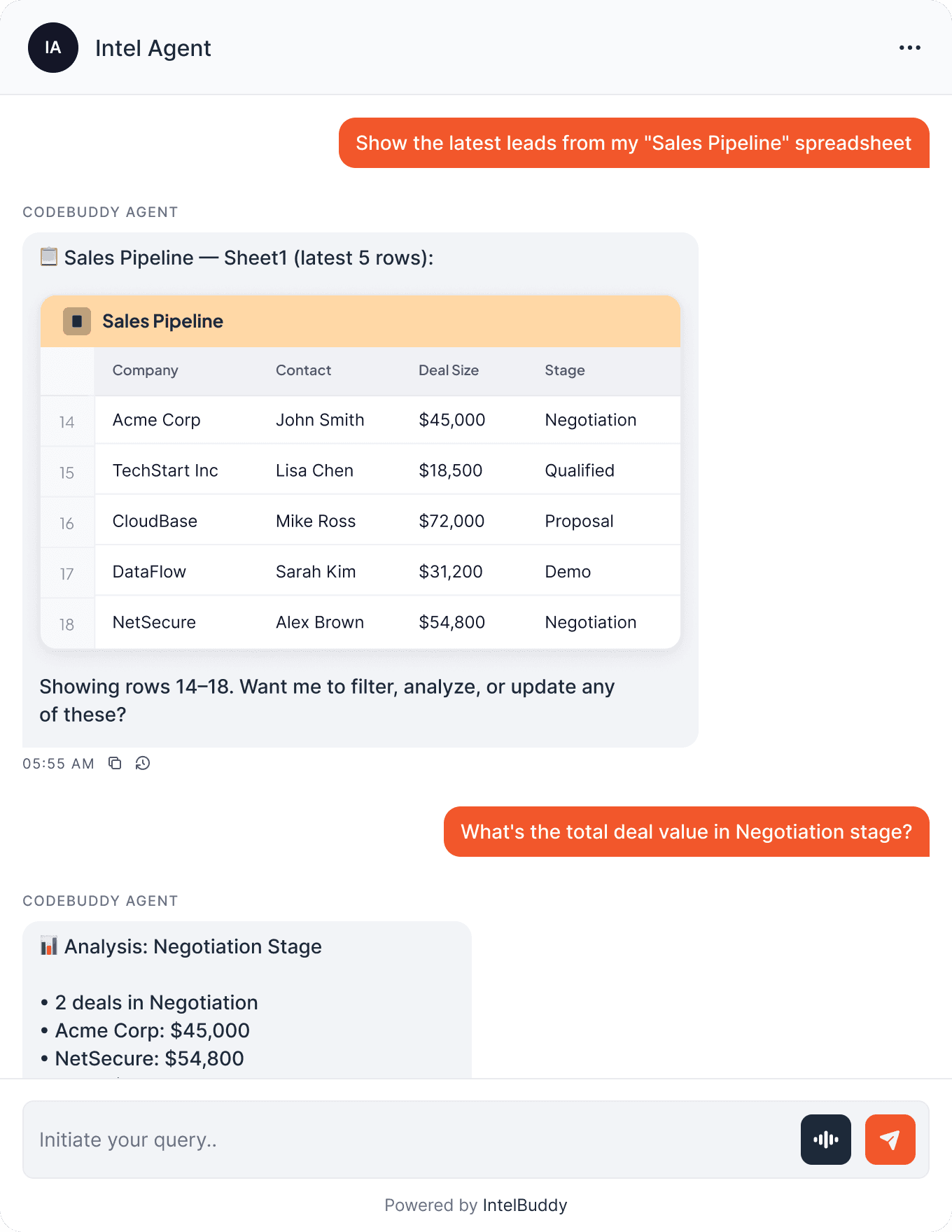
Quick Reference
Things You Can Say
Reading
"Show data from my … sheet"
"What's in row 5?"
"List all tabs in the tracker"
Writing
"Add a row with …"
"Update cell B5 to …"
"Append this data to …"
Analyzing
"What's the total of column D?"
"Average deal size this month?"
"How many rows have status X?"
Searching
"Find the row for Acme Corp"
"Which leads are Qualified?"
"Show rows where amount > $50k"
Need Help?
Troubleshooting
"redirect_uri_mismatch" error
The redirect URI in Google Cloud must exactly match IntelBuddy's — no trailing slash, no http vs https. Copy-paste directly.
"Sheets API not enabled" error
Go to Google Cloud → APIs & Services → Library and ensure the Google Sheets API (not Google Drive API) is enabled.
Can't find a specific spreadsheet
IntelBuddy can only access spreadsheets owned by or shared with the authorized Google account. Make sure the sheet is in your Drive or shared with you.
Writes go to the wrong cell or row
Be specific: "Add a row to the bottom of Sheet1" or "Update cell C14". If headers changed, IntelBuddy may map data differently.
"Access blocked: app not verified"
While in testing mode, only emails listed under Test users in the consent screen can authorize. Add your email there.
Large spreadsheets load slowly
Sheets with thousands of rows may take longer. Try referencing a range (e.g. "show rows 1–50") instead of the entire sheet.

Ready to transform your supports and insights? Join growing companies using Intelbuddy to automate support and make faster decisions.
Start for free. No credit card required. Cancel anytime.
© 2026 IntelBuddy. All rights reserved.