Integration Setup Guide
Connect Google Calendar to IntelBuddy
Create Events
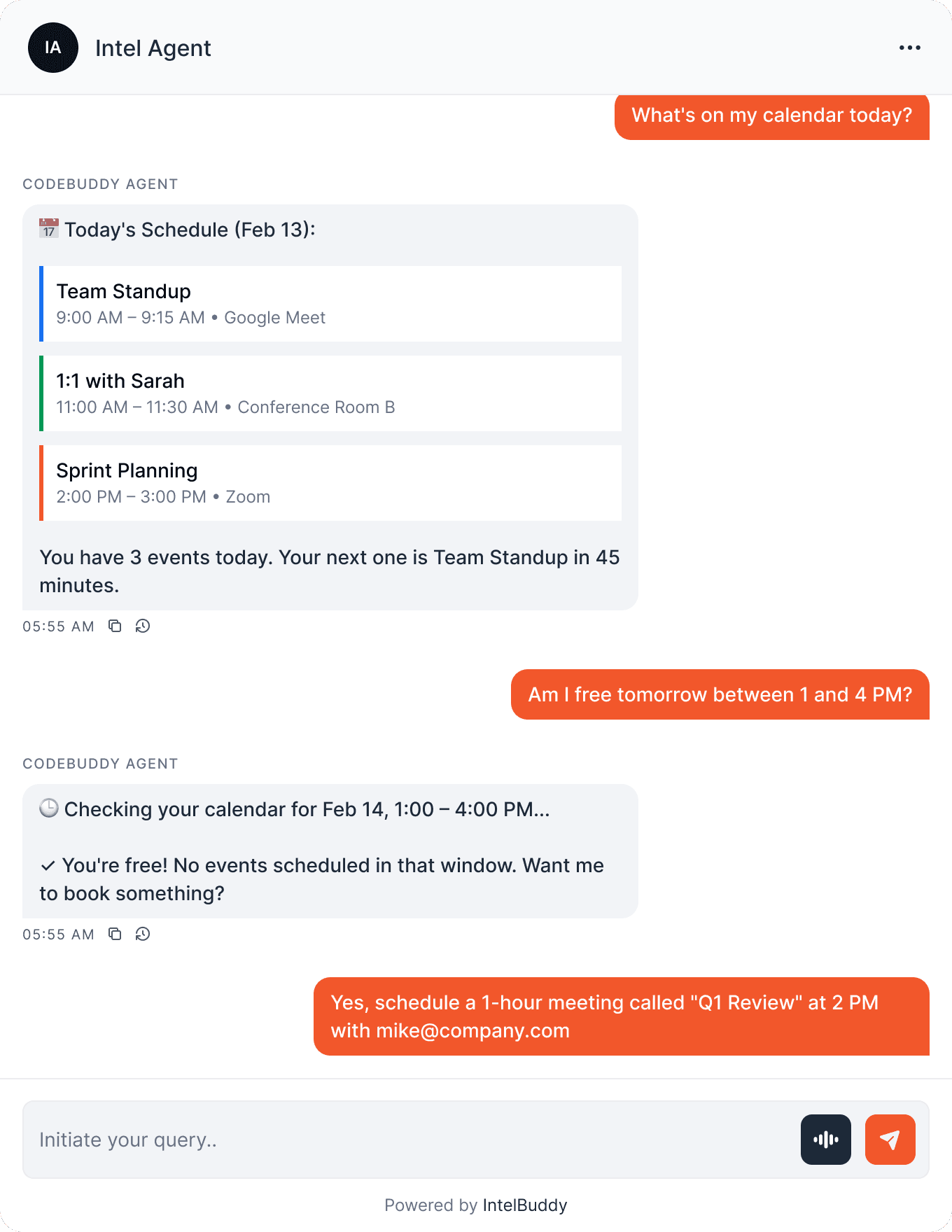
"Book a meeting with Sarah at 3 PM tomorrow" — done in seconds.
View Schedule
"What's on my calendar today?" — see your full agenda.
Check Availability
"Am I free Friday afternoon?" — instant availability check.
Reschedule
"Move the standup to 10 AM" — update events with a message.
Cancel Events
"Cancel my 4 PM meeting" — remove events and notify guests.
Invite Guests
Add attendees by email when creating or editing events.
Before You Start
Prerequisites
Step-by-Step
Setup Instructions
Connect Google Calendar to IntelBuddy using OAuth in about 10 minutes.

Enable the Google Calendar API
Turn on the Calendar API in your Google Cloud project.
Go to console.cloud.google.com
Select or create a project
Go to APIs & Services → Library
Search for "Google Calendar API"
Click on it and click "Enable"
☁️
Google Cloud Console
📚
API Library
📅
Google Calendar API
✓
Enabled
Create OAuth Credentials
Generate a Client ID and Client Secret so IntelBuddy can access your calendar securely.
Go to APIs & Services → Credentials
Click "+ Create Credentials" → "OAuth client ID"
Set application type to "Web application"
Name it (e.g. "IntelBuddy Calendar")
Under "Authorized redirect URIs", add the redirect URL from IntelBuddy (see Step 4)
Click "Create"
Copy the Client ID and Client Secret
console.cloud.google.com → APIs & Services → Credentials
🔑 OAuth Client Created
CLIENT ID
CLIENT SECRET
Copy All
Keep the Client Secret private. Never share it publicly. You can always view it again in the Google Cloud Console if needed.
Configure the OAuth Consent Screen
Set up the consent screen that appears when you authorize IntelBuddy.
Go to APIs & Services → OAuth consent screen
Choose "External" user type (or "Internal" for Google Workspace)
Fill in the App name (e.g. "IntelBuddy") and support email
Under Scopes, add: https://www.googleapis.com/auth/calendar
Under Test users, add your Google email
Click "Save and Continue"
Why "Test users"? While the app is in "Testing" mode, only the email addresses you add here can authorize it. For production use, you can publish the app later.
Paste Into IntelBuddy
Enter your Client ID and Client Secret, then configure the redirect URI.
Go to Settings → Integrations → External Tools
Find the Google Calendar card → click "Configure"
Paste your Client ID and Client Secret
Copy the Redirect URI shown by IntelBuddy
Go back to Google Cloud → add this URI to your OAuth credential's "Authorized redirect URIs"
Click "Save / Connect" in IntelBuddy
IntelBuddy → Settings → Integrations → Google Calendar
Configure Google Calendar
Client ID *
123456789-abcdef.apps.googleusercontent.com
Client Secret *
GOCSPX-AbCdEfGhIjKlMnOpQrSt
COPY THIS REDIRECT URI TO GOOGLE CLOUD:
Redirect URI
Save & Connect
Cancel
Authorize with Google
Click "Authorize" in IntelBuddy to open Google's consent screen and grant calendar access.
After saving, click the "Authorize with Google" button
A Google popup opens — select your Google account
Review the permissions and click "Allow"
You'll be redirected back to IntelBuddy

IntelBuddy wants to access your Google Account
📅 See, edit, share, and permanently delete all the calendars you can access using Google Calendar
🕒 View and edit events on all your calendars
👥 See info about your calendar's settings
Cancel
Allow
You can revoke access anytime at myaccount.google.com/permissions. IntelBuddy only accesses your calendar — not email, files, or other Google services.
Verify the Connection
The Google Calendar card should show a green "Connected" badge.
Google Calendar
🟢
Connected
🎉
You're All Set!
Your IntelBuddy chatbot can now create, view, edit, and delete Google Calendar events.

Try It Out
Example Conversations
Here's what you can say to IntelBuddy now that Google Calendar is connected.
Quick Reference
Things You Can Say
Creating
"Schedule a meeting at …"
"Book 30 mins with …"
"Create an event called …"
Viewing
"What's on my calendar today?"
"Show this week's schedule"
"What's my next meeting?"
Availability
"Am I free tomorrow at 3?"
"When am I available Friday?"
"Find a free slot this week"
Managing
"Move the standup to 10 AM"
"Cancel my 4 PM meeting"
"Add lisa@co.com to the call"
Need Help?
Troubleshooting
"redirect_uri_mismatch" error
The redirect URI in Google Cloud must exactly match the one shown in IntelBuddy — no trailing slash, no http vs https mismatch. Copy-paste it directly.
"Access blocked: app not verified"
While in testing mode, only emails listed under Test users in the OAuth consent screen can authorize the app. Add your email there, or publish the app for broader access.
"Calendar API not enabled" error
Go back to Google Cloud → APIs & Services → Library and make sure the Google Calendar API is enabled (not just searched for, but actually toggled on).
Events created on wrong calendar
By default, events are created on your primary calendar. If you have multiple calendars, specify which one when creating events, or set a default in IntelBuddy settings.
Token expired or revoked
OAuth tokens can expire or be revoked (e.g. from myaccount.google.com/permissions). Reconnect by clicking "Authorize with Google" again in IntelBuddy.
Google Workspace admin restrictions
Some Google Workspace orgs restrict third-party app access. Your admin may need to allow the app's Client ID in Admin Console → Security → API Controls.

Ready to transform your supports and insights? Join growing companies using Intelbuddy to automate support and make faster decisions.
Start for free. No credit card required. Cancel anytime.
© 2026 IntelBuddy. All rights reserved.