Integration Setup Guide
Connect Email to IntelBuddy
Send, read, and manage emails through natural conversation.
Choose the method that fits your needs.
Send Emails
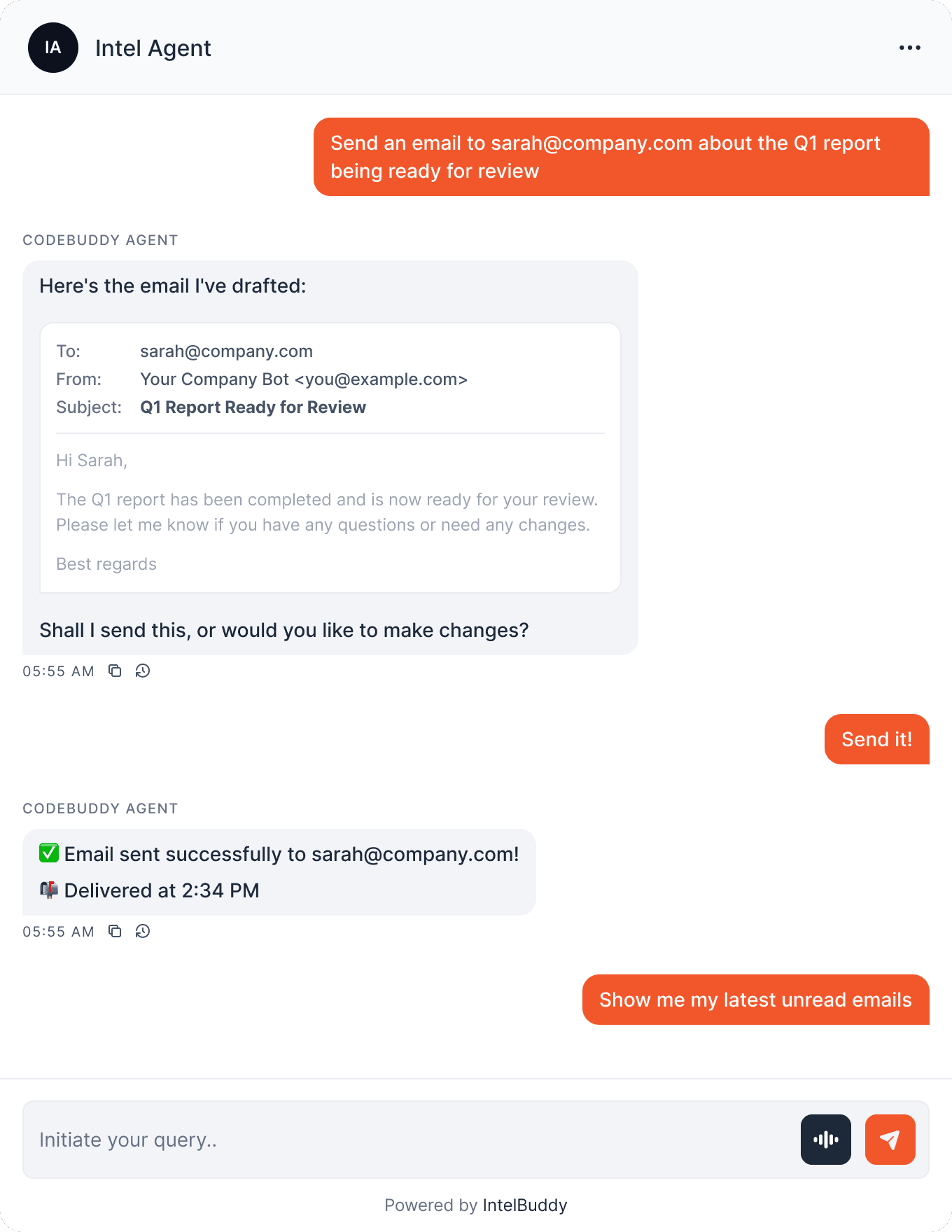
"Email Sarah about the Q1 report" — drafted, reviewed, and sent.
Read Inbox
"Show my latest emails" — browse your inbox from chat. OAuth only
Search Emails
"Find emails from John about invoices" — instant search. OAuth only
Draft & Review
Bot drafts the email and waits for your approval before sending.
CC / BCC
Send to multiple people, CC, and BCC from a single command.
Custom Sender
Emails show your brand name like "Acme Support" or "Your Company".

Choose Your Method
Two Ways to Connect Email
Pick the method that matches what you need. You can always switch later.

Send emails
Custom sender name
5-minute setup
No Google Cloud required
Cannot read inbox
Cannot search emails
⚡ Best for: Sending notifications, follow-ups, and outbound emails

Method B
Gmail OAuth (API)
Full Gmail API access via OAuth. Read, search, and send emails with all Gmail features.
Send emails
Read & search inbox
Full Gmail features
Label management
Requires Google Cloud project
~15 min setup
🔒 Best for: Full email management, inbox monitoring, and search
Before You Start
Prerequisites
Method B — OAuth
Gmail OAuth Setup
Full Gmail API access — read, search, and send emails. Takes about 15 minutes.

Enable Gmail API
Create or select a Google Cloud project and turn on the Gmail API.
Go to Google Cloud Console
Select an existing project or click "New Project"
Navigate to APIs & Services → Library
Search for "Gmail API" and click Enable
☁️
Cloud Console
📚
API Library
✉️
Gmail API
✓
Enabled
Generate an App Password
This creates a separate 16-character password for IntelBuddy — not your Gmail password.
Go to Google Account → Security → App passwords
Under "App name", type IntelBuddy
Click "Create"
Google shows a 16-character password — copy it immediately
myaccount.google.com/apppasswords
🔑 Your App Password
Your app password for "IntelBuddy":
Copy this password now. You won't see it again.
Copy
Done
Copy it now! Google only shows the App Password once. If you lose it, delete the old one and generate a new one.
Paste Into IntelBuddy
Enter your email, App Password, and optional sender name.
Go to Settings → Integrations → External Tools
Find the Email (Gmail) card → click "Configure"
Fill in the fields below and click "Save / Connect"
IntelBuddy → Settings → Email (Gmail)
Configure Email (Gmail)
No API keys needed. Just choose your preferred search backend and click connect.
Sender Email *
you@example.com
App Password *
abcdefghijklmnop
Sender Name
Your Company Bot
Save & Connect
Cancel
Tip: Enter the App Password without spaces as a single 16-character string (e.g. abcdefghijklmnop).
Verify Connection
The Email card should show a green "Connected" badge.
Email (Gmail)
🟢
Connected
🎉
SMTP Setup Complete!
Your bot can now send emails via Gmail. Jump to Example Conversations ↓ to try it out.

Method B — OAuth
Gmail OAuth Setup
Full Gmail API access — read, search, and send emails. Takes about 15 minutes.
Enable 2-Step Verification
Google requires this before you can create App Passwords. Skip if already enabled.
Go to myaccount.google.com
Click Security in the left sidebar
Under "How you sign in to Google", click 2-Step Verification
Follow the prompts to enable it
👤
Google Account
🔒
Security
📱
2-Step Verification
✓
Enabled
Create OAuth 2.0 Credentials
Generate a Client ID and Client Secret for IntelBuddy to authenticate with Google.
Go to APIs & Services → Credentials
Click "+ Create Credentials" → "OAuth client ID"
Application type: Web application
Under "Authorized redirect URIs", add:
https://YOUR_BACKEND_URL/api/v1/external-tools/gmail/oauth/callback
Click Create
Copy the Client ID and Client Secret
console.cloud.google.com/apis/credentials
🔑 OAuth 2.0 Client Created
CLIENT ID
CLIENT SECRET
Keep your Client Secret private. Never share it publicly or commit it to version control.
Paste Into IntelBuddy
Enter your email, App Password, and optional sender name.
Go to Settings → Integrations → External Tools
Find the Email (Gmail) card → click "Configure"
Fill in the fields below and click "Save / Connect"
IntelBuddy → Settings → Gmail (OAuth)
Configure Gmail (OAuth)
Client ID *
123456789-abcdef.apps.googleusercontent.com
Client Secret *
GOCSPX-AbCdEfGhIjKlMnOpQrStUv
Save & Connect
Cancel
Authorize with Google
After saving, click "Connect with Google" to complete the OAuth flow.
Click the "Connect with Google" or "Authorize" button that appears
Google's consent screen will open — review the permissions
Click "Allow" to grant IntelBuddy access to your Gmail
You'll be redirected back to IntelBuddy automatically
Sign in with Google
IntelBuddy wants access to your Google Account
✉️ Read, compose, and send emails
🔍 Search and organize emails
🏷️ Manage labels
Cancel
Allow
Verify Connection
The Gmail (OAuth) card should now show "Connected" with your email address.
Gmail (OAuth)
🟢
Connected
Security: IntelBuddy can only access the Gmail account that completed the OAuth flow. You can revoke access anytime from your Google Account permissions ↗.
🎉
OAuth Setup Complete!
Your bot now has full Gmail access — send, read, and search emails from chat.
Try It Out
Example Conversations
Here's what you can say to your IntelBuddy chatbot now that Email is connected.
Quick Reference
Things You Can Say
Sending
BOTH
"Send an email to … about …"
"Email [person] saying …"
"Send this to … and CC …"
Drafting
BOTH
"Draft an email to … about …"
"Write a formal email to …"
"Compose a follow-up email"
Reading
OAUTH
"Show my latest emails"
"Any unread emails?"
"Read the email from John"
Searching
OAUTH
"Find emails about invoices"
"Search for emails from …"
"Emails from last week"
Need Help?
Troubleshooting
"Authentication failed" error
SMTP
Make sure you're using the App Password (16 chars), not your Gmail password. Regenerate from Google Account → Security → App Passwords.
"App passwords" option not visible
SMTP
2-Step Verification must be enabled first. Go to Google Account → Security → 2-Step Verification and turn it on.
"Redirect URI mismatch"
OAuth
Make sure you copied the Bot User OAuth Token (starts with xoxb-), not the User token or Signing Secret. Reinstall the app if needed.
"Access denied" on Google consent screen
OAuth
If your app is in "Testing" mode, only test users you've added in the OAuth consent screen config can authorize. Add your email as a test user or publish the app.
Email sent but not received
OAuth
Check the recipient's spam/junk folder. New Gmail accounts may have emails flagged initially. Also verify the recipient address is correct.
Sender name shows email instead of display name
SMTP
Make sure you filled in the Sender Name field in IntelBuddy. If left blank, Gmail uses your default account name.

Ready to transform your supports and insights? Join growing companies using Intelbuddy to automate support and make faster decisions.
Start for free. No credit card required. Cancel anytime.
© 2026 IntelBuddy. All rights reserved.