Integration Setup Guide
Connect your Custom API to IntelBuddy
Bring any REST API into IntelBuddy. Query internal systems, proprietary tools, or any service with an HTTP endpoint.
Connect Anything with an API
CRM, ERP, warehouse systems, internal dashboards, IoT platforms, legacy databases — if it has a REST API, IntelBuddy can talk to it.
GET Data
Pull records, lists, and details from any API endpoint.
POST Data
Create new records by sending data to your API.
PUT/PATCH
Update existing records through your API endpoints.
Multiple Auth
API Key, Bearer Token, Basic Auth — all supported.
Custom Headers
Add any headers your API requires.
AI Interpretation
IntelBuddy reads JSON responses and explains them in plain English.
Before You Start
Prerequisites
Authentication
Supported Auth Methods
Choose the method that matches your API's authentication requirements.
API Key
Sent as a header or query parameter. Most common for third-party APIs.
Bearer Token
OAuth2 access token in the Authorization header. Standard for modern APIs.
Basic Auth
Username + password encoded in the Authorization header. Common for internal APIs.
HTTP METHODS
Supported Request Types
GET
POST
PUT
PATCH
DELETE
IntelBuddy can call any combination of endpoints and methods. Define each endpoint separately during setup.
Step-by-Step
Setup Instructions
Connect your custom API to IntelBuddy by defining endpoints and authentication.

Gather Your API Details
Collect the information you'll need from your API documentation.
Your API's base URL (e.g. https://api.yourservice.com/v1)
Authentication credentials (API key, token, or username/password)
The endpoints you want IntelBuddy to access (e.g. /users, /orders)
Any required headers (e.g. Content-Type, custom headers)
Expected request/response formats (JSON)
Tip: Test your API calls with a tool like Postman or cURL first. If it works there, it'll work in IntelBuddy.
Configure in IntelBuddy
Define your API connection with base URL, auth method, and endpoints.
Go to Settings → Integrations → External Tools
Find Custom API → click "Add API"
Name it (e.g. "Internal CRM", "Warehouse API")
Enter the Base URL
Select your auth method and enter credentials
Add endpoints you want to expose
Click "Save / Connect"
IntelBuddy → Settings → Integrations → Custom API
Configure Custom API
API Name *
Internal CRM
Base URL *
https://api.acmecrm.com/v2
Auth Method *
🔑 API Key
API Key *
ak_live_7xR4mT9pN2qWbJhDyC5fA3s…
Key Header Name
X-API-Key
Save & Connect
Cancel
Define Endpoints
Tell IntelBuddy which endpoints to use and what they do.
Click "+ Add Endpoint"
Enter the path (e.g. /contacts)
Select the HTTP method (GET, POST, etc.)
Add a description so IntelBuddy knows when to use it
Optionally define parameters and request body schema
Repeat for each endpoint
IntelBuddy → Settings → Email (Gmail)
Configured Endpoints
GET
/contacts
List all contacts
GET
/contacts/{id}
Get contact by ID
POST
/contacts
Create a contact
GET
/deals
List all deals
PATCH
/deals/{id}
Update a deal
+ Add Endpont
Descriptions matter! IntelBuddy uses your endpoint descriptions to decide which API to call when users ask questions. Write clear, natural descriptions like "List all contacts" or "Get deal details by ID".
Test the Connection
Use the built-in test to verify IntelBuddy can reach your API.
Internal CRM
api.acmecrm.com • 5 endpoints
🟢
Connected
🎉
You're All Set!
IntelBuddy can now call your custom API endpoints and present the data conversationally.

Try It Out
Example Conversations
Here's how IntelBuddy interacts with a custom CRM API.
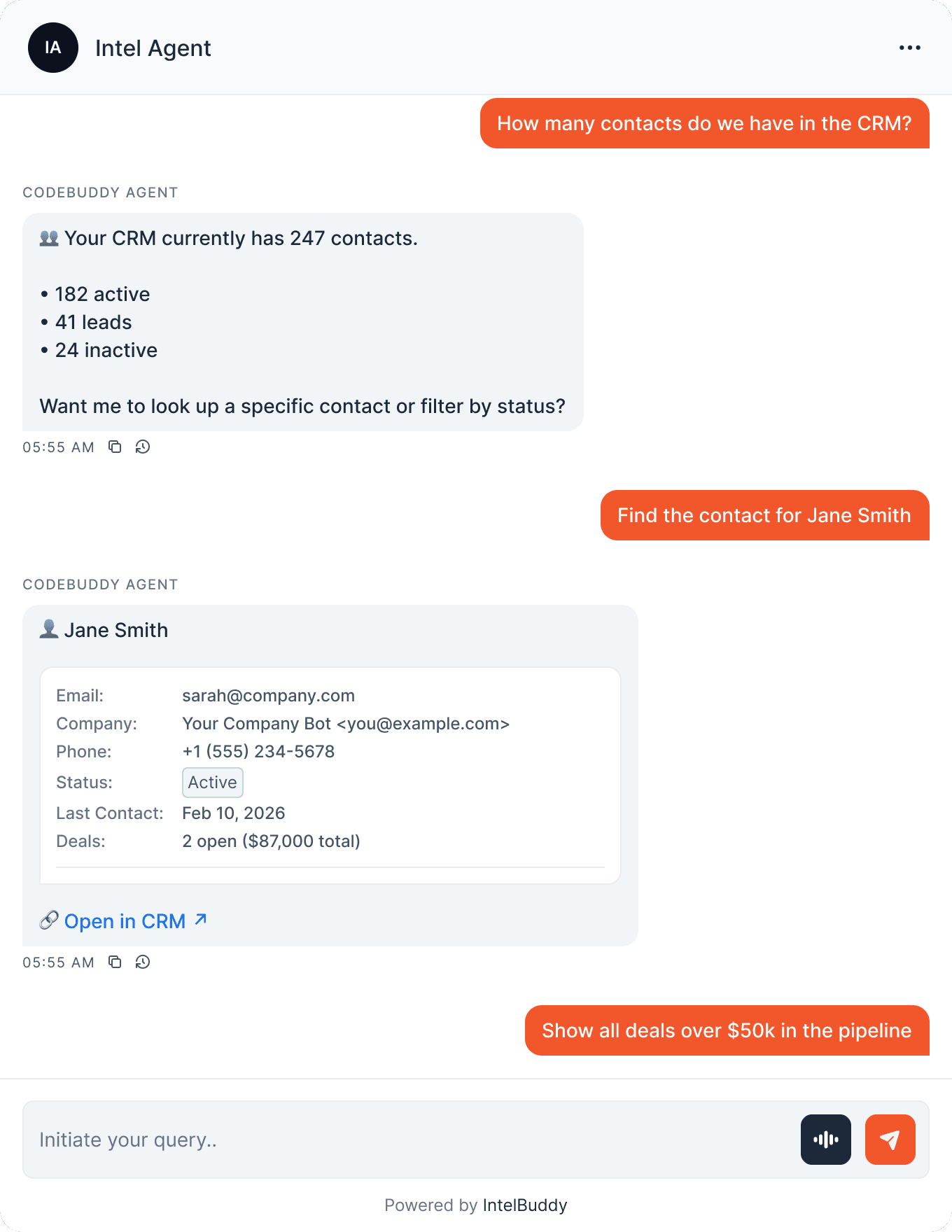
Quick Reference
Things You Can Ask
Reading Data
"How many … do we have?"
"Find … by name/email"
"Show all … where …"
Creating
"Create a new …"
"Add a contact for …"
"Submit a new … record"
Updating
"Update … status to …"
"Change the … for …"
"Set … to …"
Analytics
"Total … this month?"
"How many … are active?"
"Breakdown of … by …"
Need Help?
Troubleshooting
"Connection refused" or timeout
Your API must be publicly accessible over HTTPS. IntelBuddy cannot reach APIs behind a VPN, firewall, or localhost. If your API is internal, expose it through a reverse proxy or API gateway.
"401 Unauthorized" error
Check your auth credentials and make sure the key/token is correct. Also verify the header name matches what your API expects (e.g. X-API-Key vs Authorization vs Api-Key).
IntelBuddy calls the wrong endpoint
Improve your endpoint descriptions. Clear, specific descriptions help IntelBuddy choose the right endpoint. "List all active contacts with their company" is better than "Get contacts".
API returns non-JSON response
IntelBuddy expects JSON responses. If your API returns XML, CSV, or plain text, you'll need a middleware layer that converts it to JSON, or contact your API team to add JSON support.
Rate limiting or 429 errors
If your API has rate limits, IntelBuddy will show the error. Consider increasing your API's rate limit for IntelBuddy's IP, or reduce query frequency.
Complex nested JSON responses
IntelBuddy handles nested JSON well but very deep or large responses (over 100KB) may be truncated. Consider using pagination parameters or asking for specific fields to keep responses manageable.

Ready to transform your supports and insights? Join growing companies using Intelbuddy to automate support and make faster decisions.
Start for free. No credit card required. Cancel anytime.
© 2026 IntelBuddy. All rights reserved.