Integration Setup Guide

Connect ClickUp to IntelBuddy
Manage tasks, create projects, and track work — all through natural conversation. Set up in under 5 minutes.
Create Tasks
Say "Create a task" and the bot handles title, assignee, due date.
List & Search
"Show my open tasks" or "Find tasks assigned to John".
Update Status
"Move task #123 to In Progress" — instant changes.
Browse Spaces
Navigate your workspace hierarchy from the chat.
Due Reminders
Get notified about upcoming or overdue tasks.
Task Summaries
"Summary of this week's completed tasks" — instant reports.
Before You Start
Prerequisites
Step-by-Step
Setup Instructions
Follow these steps to connect ClickUp to IntelBuddy. The entire process takes under 5 minutes.

Get Your ClickUp API Key
Generate a personal API token from your ClickUp account.
Open ClickUp in your browser → app.clickup.com
Click your avatar (bottom-left corner)
Select "Apps" or "ClickUp API"
Scroll to the "API Token" section
Click "Generate" (or "Copy" if you already have one)
Copy the token — you'll paste it into IntelBuddy next
app.clickup.com/settings/apps
Copy Token
Regenerate
Keep your API key private. Don't share it publicly. If compromised, regenerate it from ClickUp → Settings → Apps.
Find Your Space ID
Optional
Setting a default Space lets the bot know where to create tasks when you don't specify one.
In ClickUp, click the Space you usually work in (left sidebar)
Look at your browser URL — it will look like the example below
Copy the first number after clickup.com/
app.clickup.com/90161460945/v/l/t/90161460946
This number is your Space ID
Tip: If you skip this, the bot will ask you which Space to use each time you create a task. Setting a default just saves time.
Paste Into IntelBuddy
Navigate to the integrations panel and enter your credentials.
Log in to IntelBuddy
Go to Settings → Integrations → External Tools
Find the ClickUp card and click "Configure"
Fill in the fields as shown below
Click "Save / Connect"
IntelBuddy → Settings → Integrations → ClickUp
Configure ClickUp
API Key *
Default Space ID
90161460945
Save & Connect
Cancel
Verify the Connection
Once saved, the ClickUp card should show a green "Connected" badge.
ClickUp
🟢
Connected
If you see an error, double-check that your API key is correct and hasn't expired. You can regenerate it from ClickUp → Settings → Apps.
🎉
You're All Set!
Your IntelBuddy chatbot can now manage ClickUp tasks through natural conversation.

Try It Out
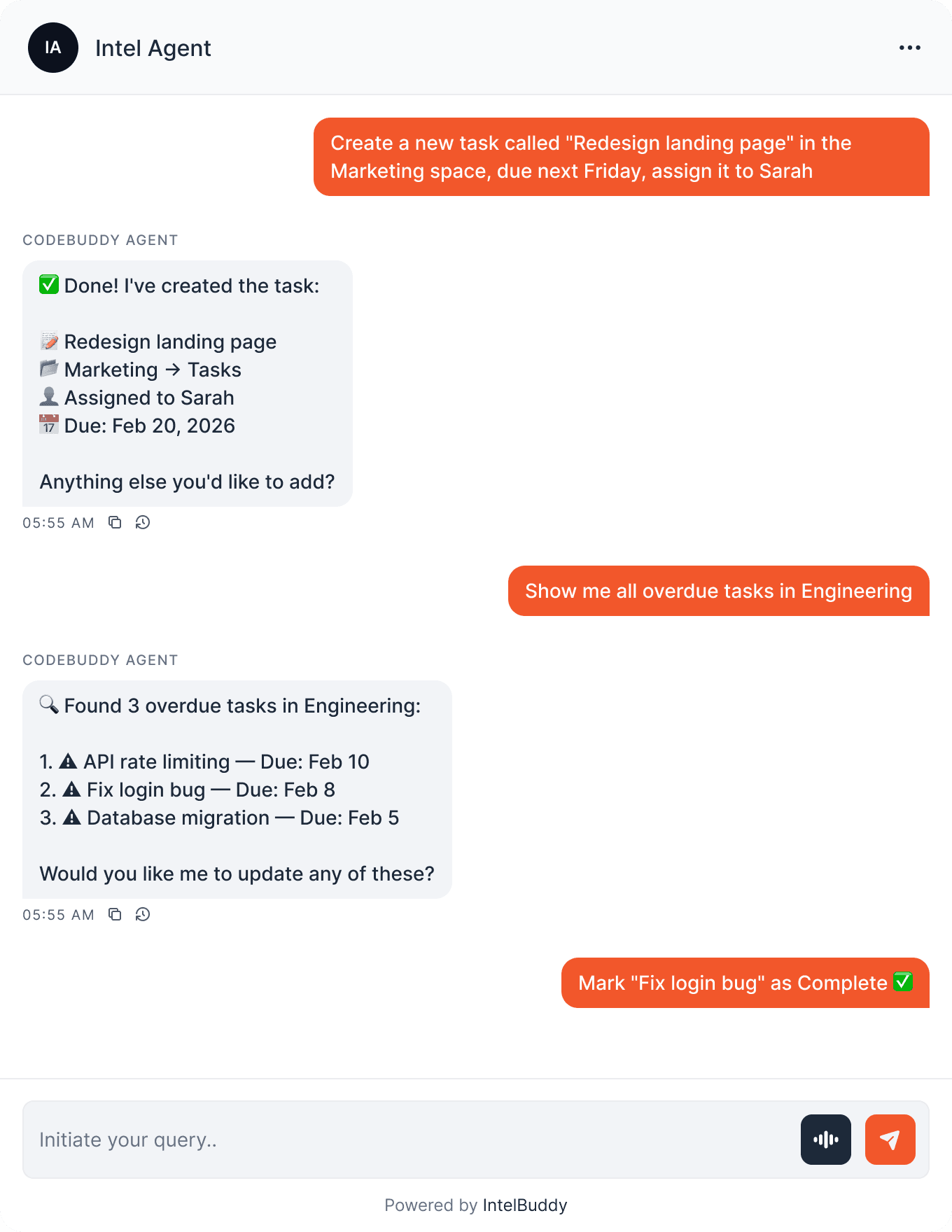
Example Conversations
Here's what you can say to IntelBuddy, and what it looks like in Slack.
Quick Reference
Things You Can Say
Creating
"Create a task called …"
"Add a task to the … list"
"New task, assign it to …"
Searching
"Show my open tasks"
"Find tasks due this week"
"List tasks assigned to …"
Updating
"Move task … to In Progress"
"Change the due date of …"
"Mark … as complete"
Exploring
"Show me all Spaces"
"What lists are in Marketing?"
"Summary of this week"
Need Help?
Troubleshooting
"Invalid API Key" error
Make sure you copied the full token from ClickUp. Go to ClickUp → Settings → Apps → API Token and regenerate if needed.
"Space not found"
Double-check your Space ID from the URL. Make sure you're copying the first number after clickup.com/.
"Permission denied" when creating tasks
Your ClickUp account needs member or admin access to the Space. Check with your workspace owner.
Tasks created in the wrong Space
Set a Default Space ID in integration settings, or specify the Space name in your message (e.g. "Create a task in Marketing").

Ready to transform your supports and insights? Join growing companies using Intelbuddy to automate support and make faster decisions.
Start for free. No credit card required. Cancel anytime.
© 2026 IntelBuddy. All rights reserved.