
How to Integrate Intelbuddy with Facebook Messenger
This training guide offers a step-by-step process for integrating Intelbuddy with business Facebook page. Once the AI agent is connected to Messenger, it will automatically begin responding to inquiries, enhancing customer engagement and support.

1
Navigate to https://app.intelbuddy.ai
2
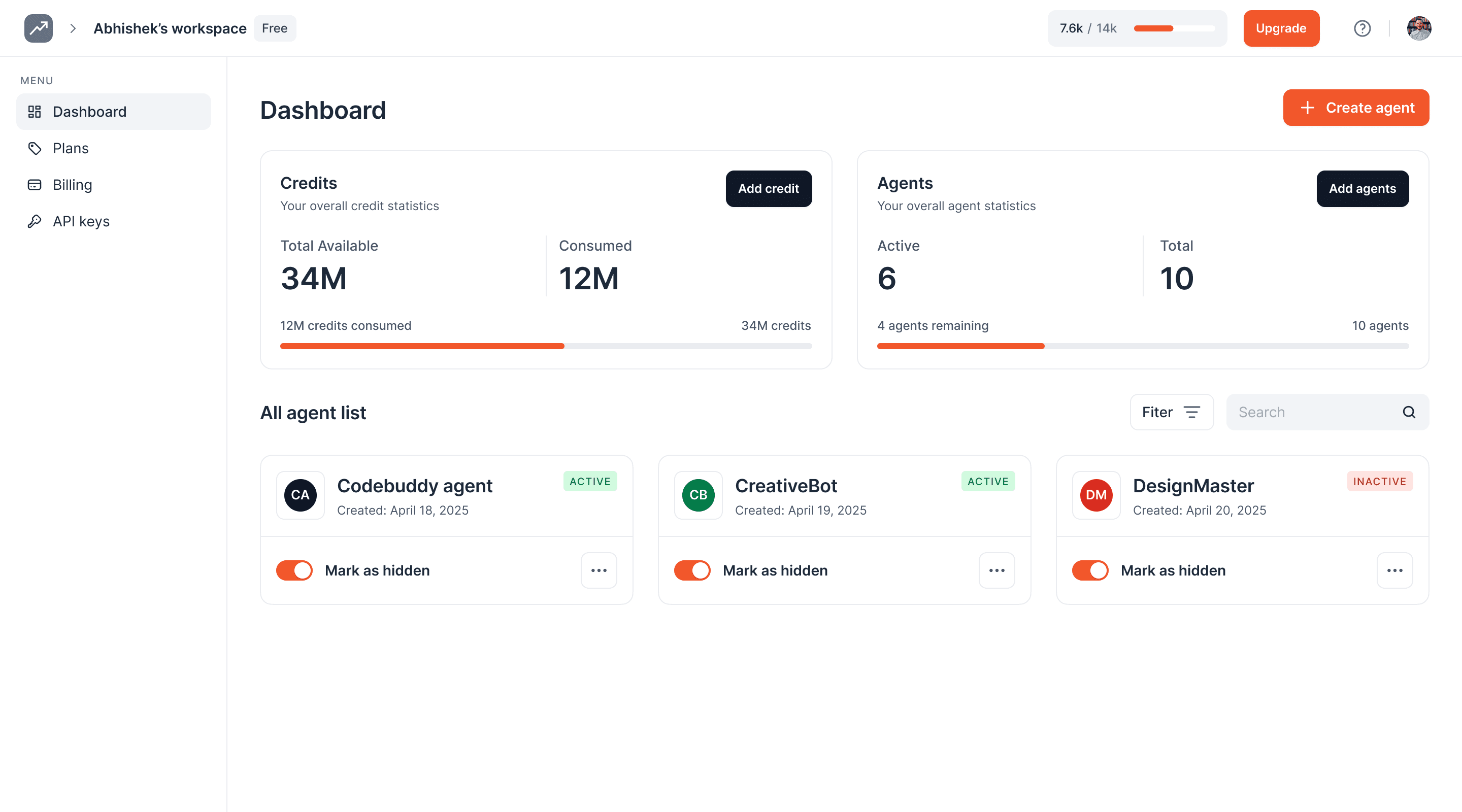
Select your AI agent
3
Click on the 'Integrations' option to open the page.
4
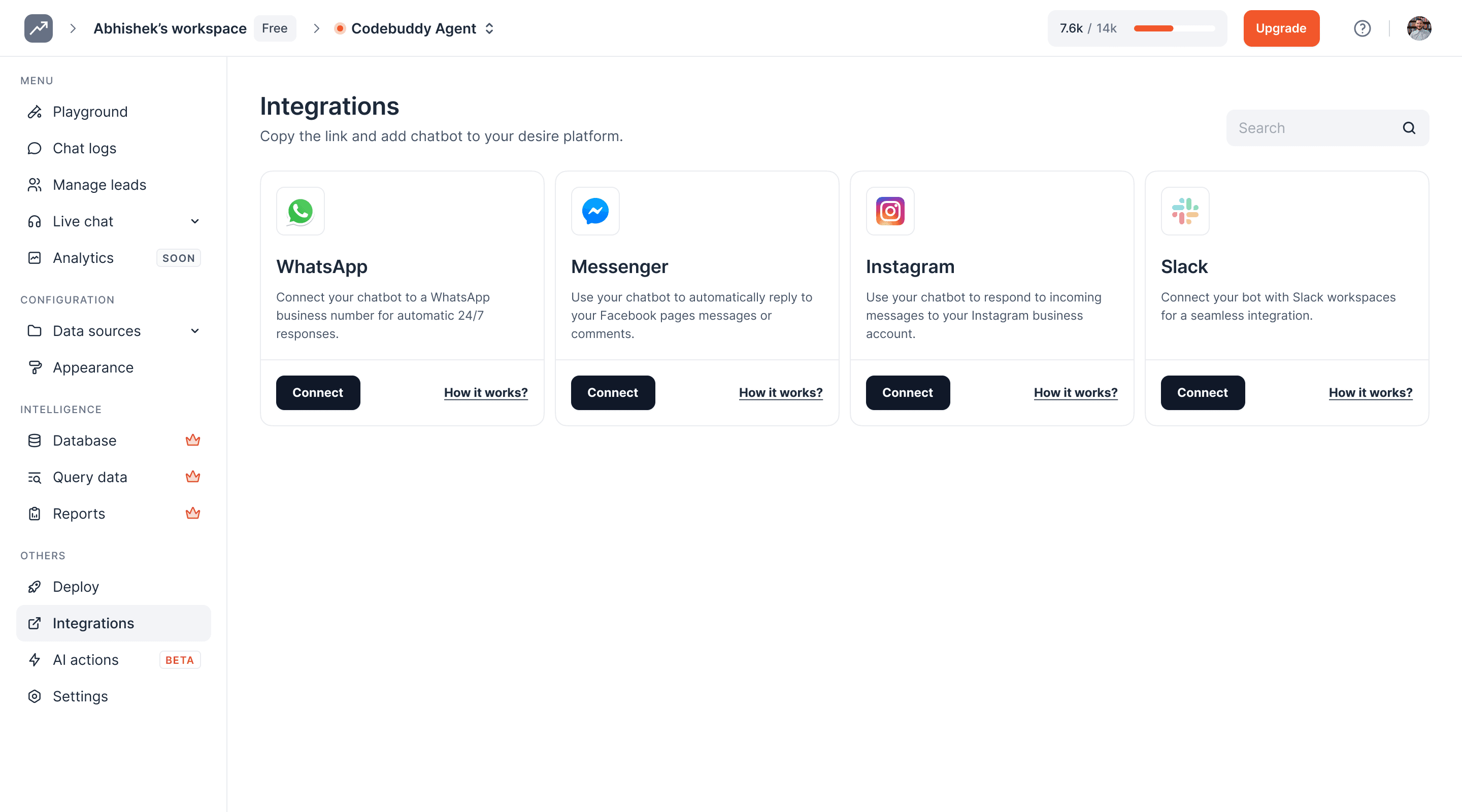
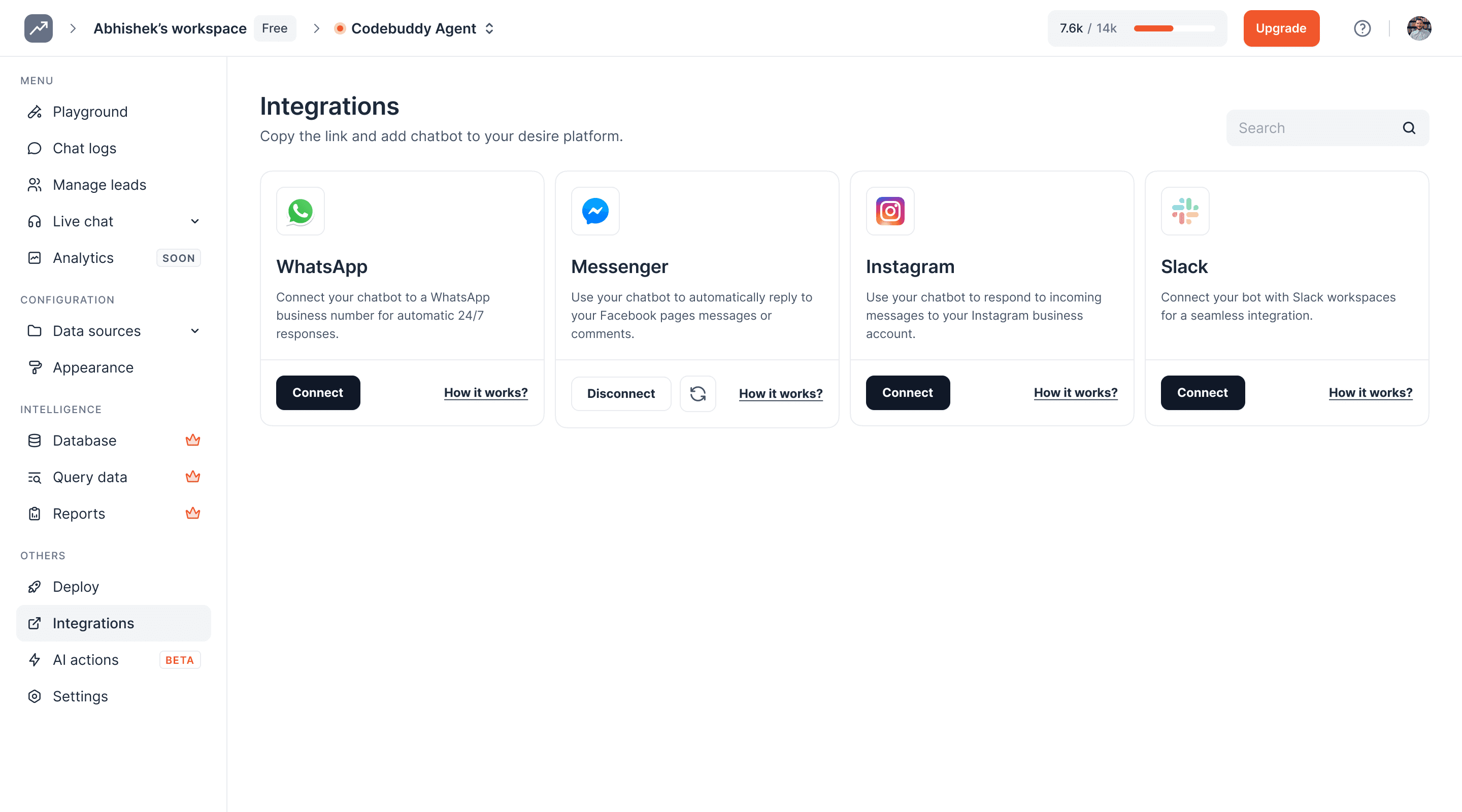
Click on the 'Connect' button under the Messenger section.
5
Click on the 'Continue' button If you are already logged into Facebook and created at list 1 page, log in to your Facebook account and then click on Continue.
6
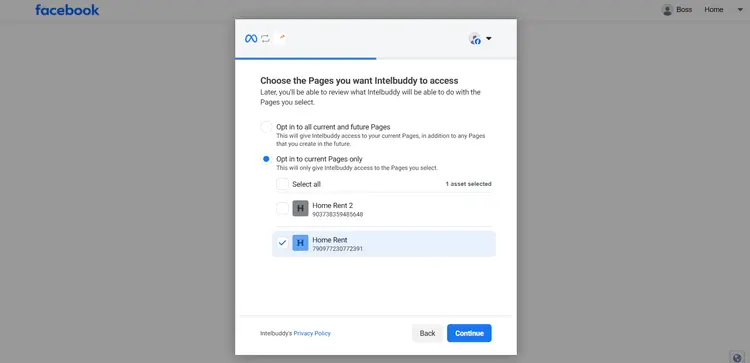
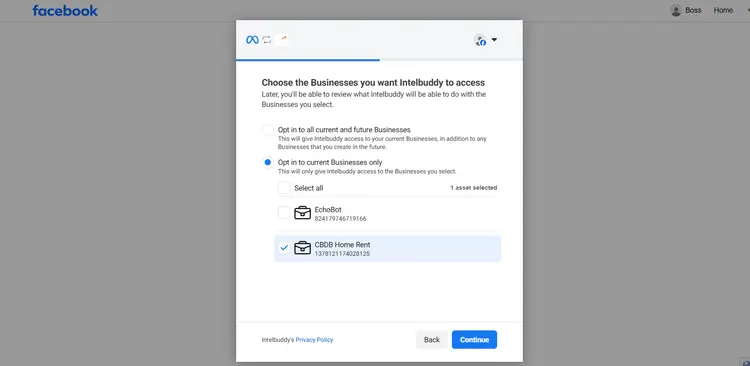
Select the page that you want to connect with Intelbuddy. If you want connect all the pages then select first option Opt in to all current and future pages.
7
After selecting the Facebook page, click on 'Continue'.
8
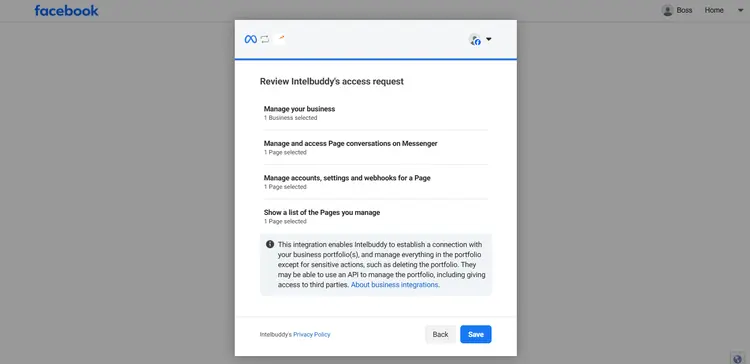
Click on the 'Save' button.
9
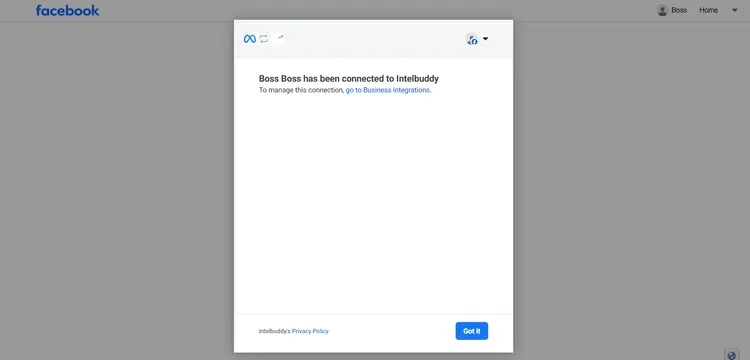
Click on the 'Got it' button.
10
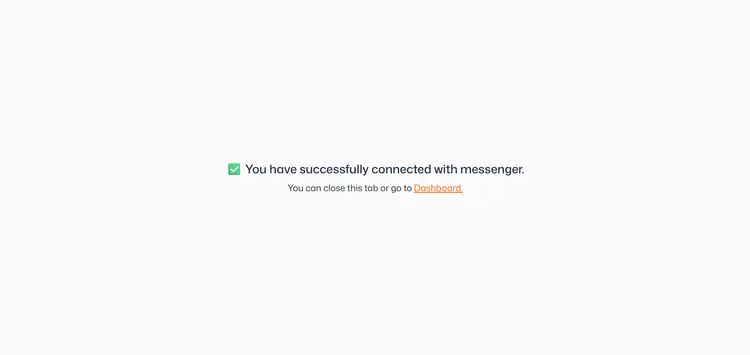
Once your AI agent is connected with your page, you will see this success page. click on Dashboard.
11
To see the connected page, click on this setting icon.
12
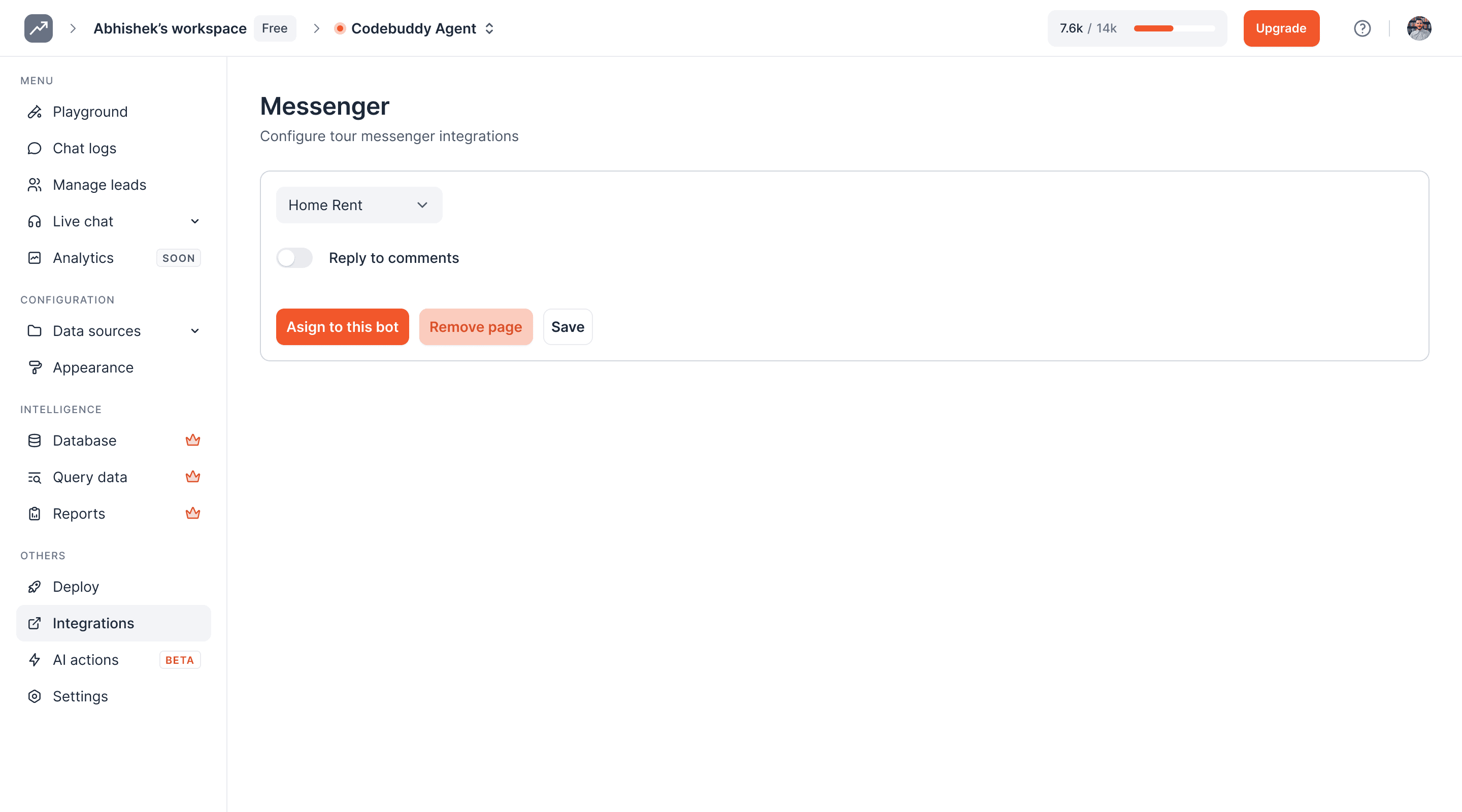
You have see all the connected pages in select input. Select the page you want to assign to the AI agent.
13
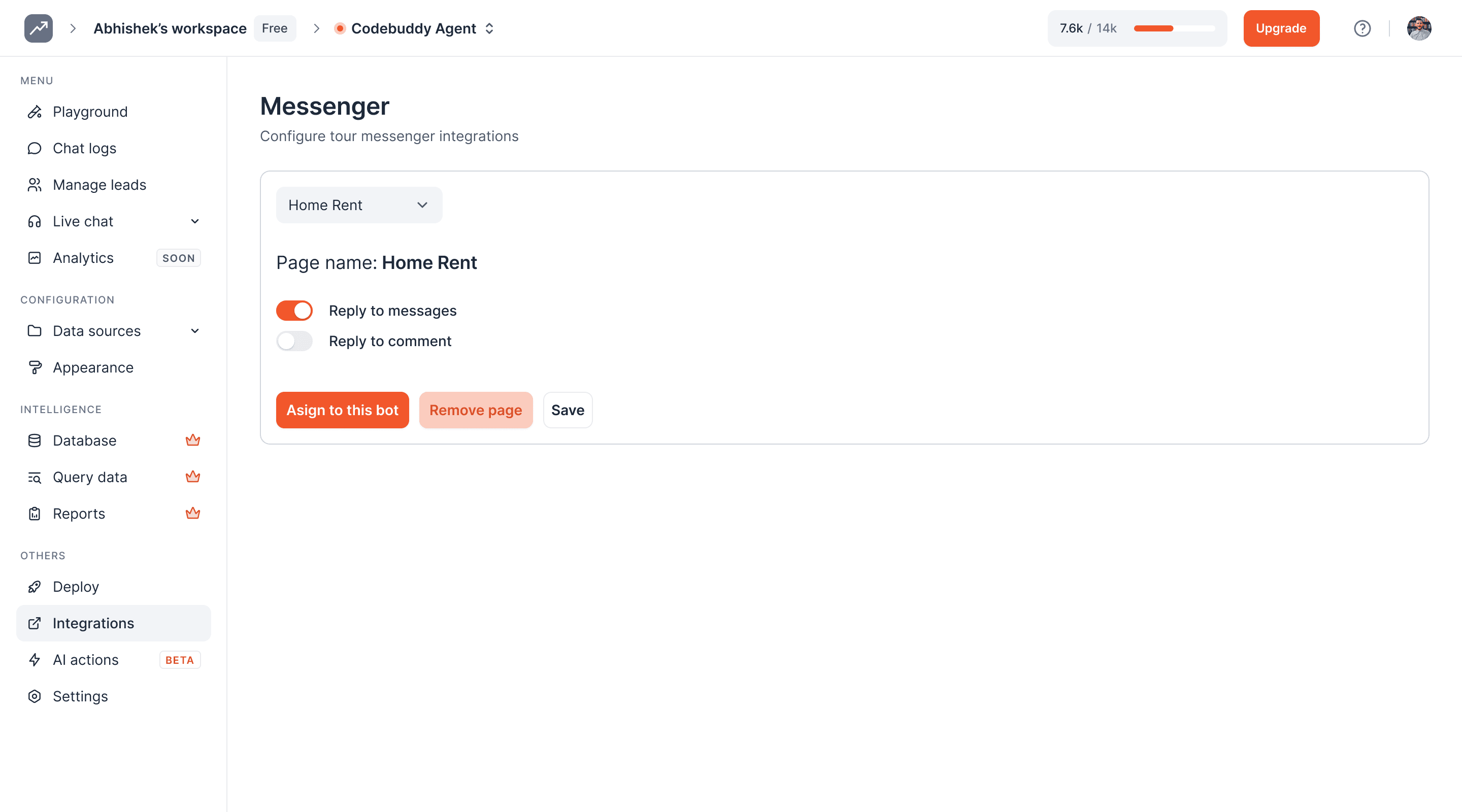
Turn the 'Reply to messages' option on so the AI agent can reply to messages on the Facebook page.
14
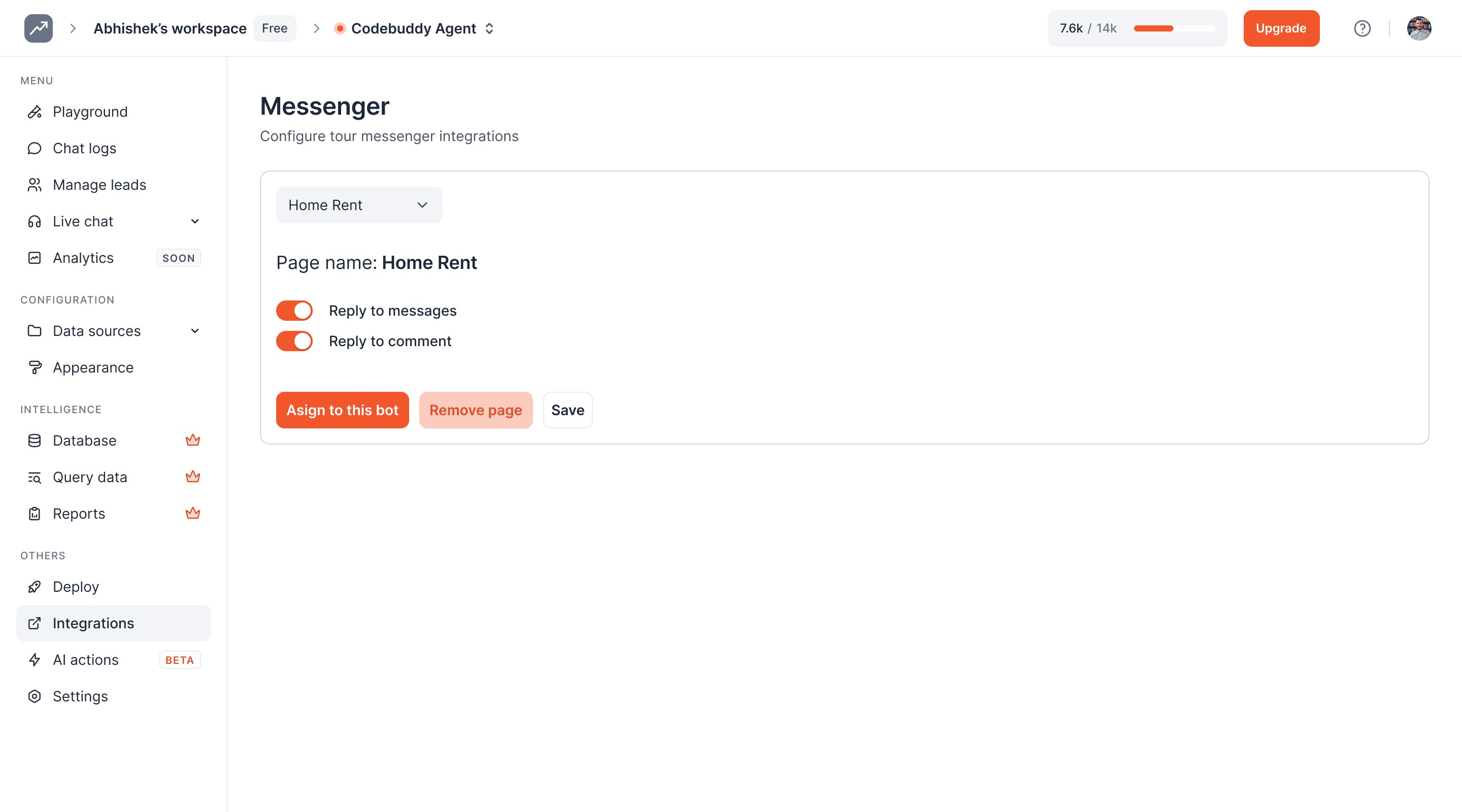
If you also want the AI agent to reply to comments on your Facebook page, you can turn this option on.
15
To make the AI agent functional on this page, click on the Assign to this bot button.
16
Click on Save button to save the changes like reply to messages, reply to comments.
17
If you need to unassign the AI agent from selected Facebook page, click on Unassign from this bot button
18
If you want to assign different page then select the page from the select input and click on Assign to this bot button.
19
If you need to remove the selected Facebook page, click on Remove Page button
20
You can see that page is removed from the list of connected pages
21
If you want to connect different page then click on Connect button again.
22
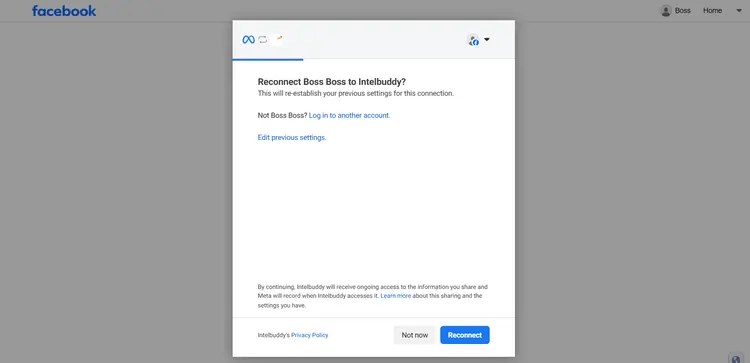
Click on the 'Edit Previous Settings' option.
23
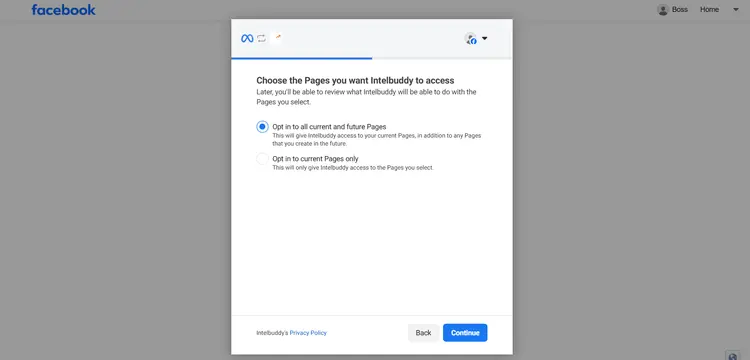
If you have any other Facebook pages, they will show in the list. Select the page you want to connect by clicking the checkbox.
24
If you want connect all the pages then select first option Opt in to all current and future pages.
25
After selecting the Facebook page, click on 'Continue'.
26
You have successfully connected the other Facebook page with your AI agent.
27
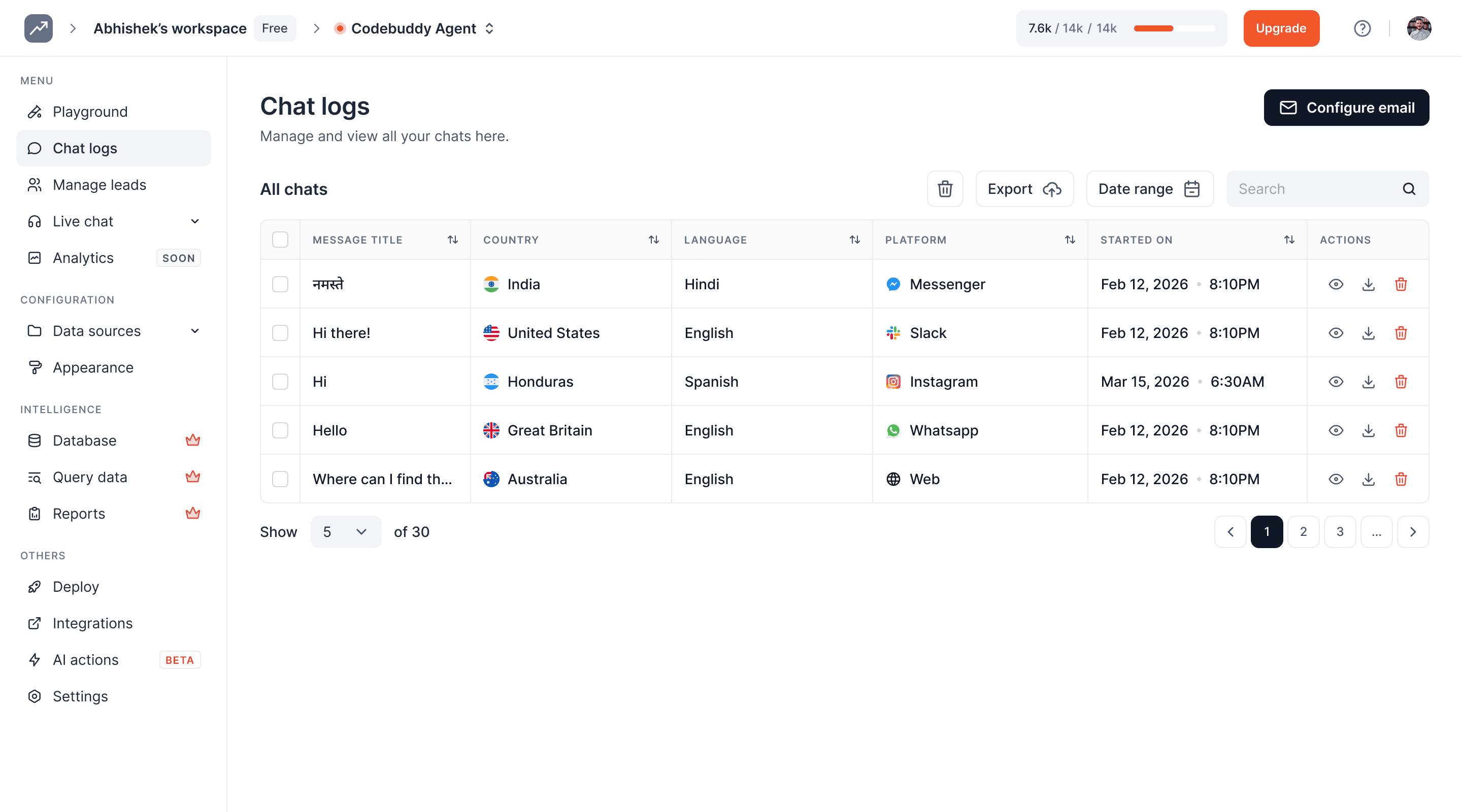
Once your AI agent is assigned to the Facebook page, it will begin responding to questions from users on Messenger. You can view the conversations either directly on Messenger or on the Chat logs page in your Intelbuddy account.
28
AI agent will add the 'Messenger' logo on all chats coming from the connected Facebook page.
29
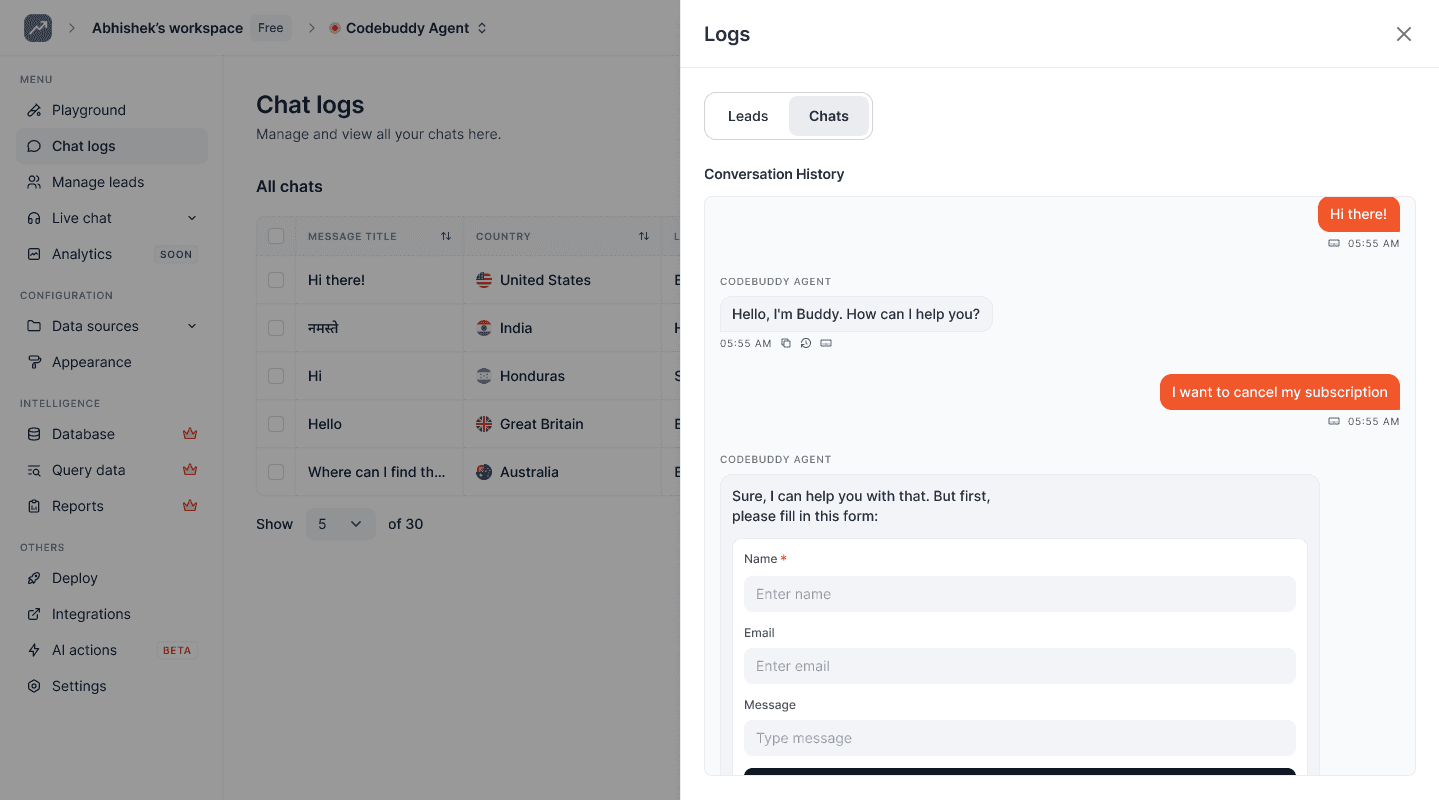
Click on the eye icon to see the chat history.
30
You can read the chat transcript or download it.
31
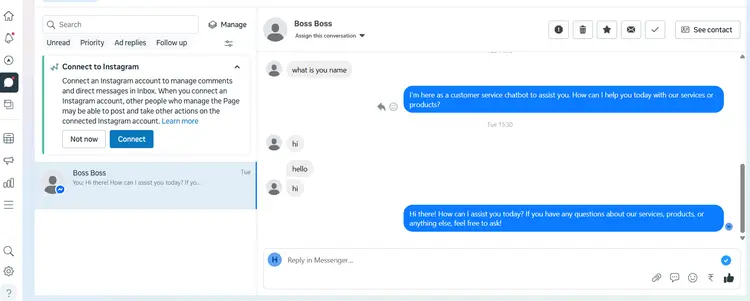
You can also log into the Messenger app and see the conversation there.
32
Done! You have successfully integrated your AI agent with your Facebook account 🚀
Ready to transform your supports and insights? Join growing companies using Intelbuddy to automate support and make faster decisions.
Start for free. No credit card required. Cancel anytime.
© 2026 IntelBuddy. All rights reserved.